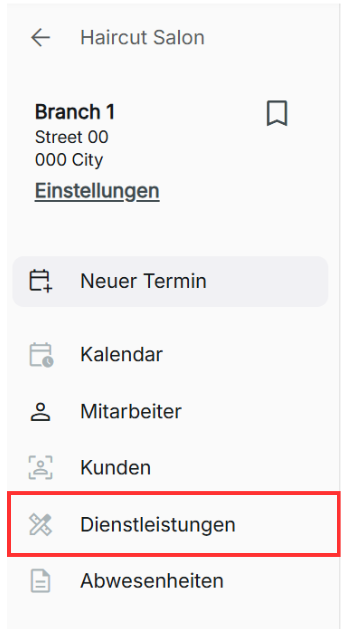
Services
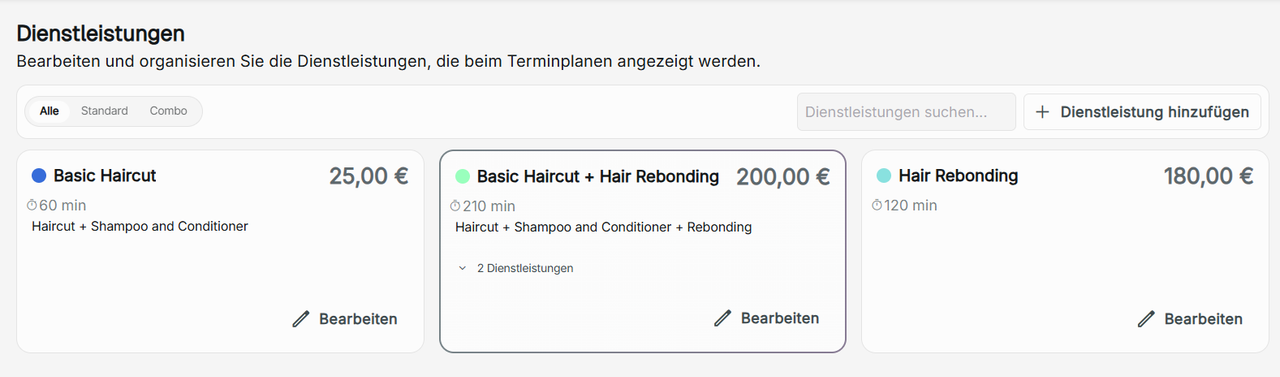
This is where you can manage the services your branch's organization provides. You can organize the services you can view by all, standard, or combo. You use the search services search bar to find a specific service. Services can be created and edited individually for each shop's branch.
Types of Services
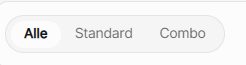
Standard – A single service offering
Combo – Bundling 2 or more services together in a single service
All - To view all single and combo services your shop provides.
Adding a service
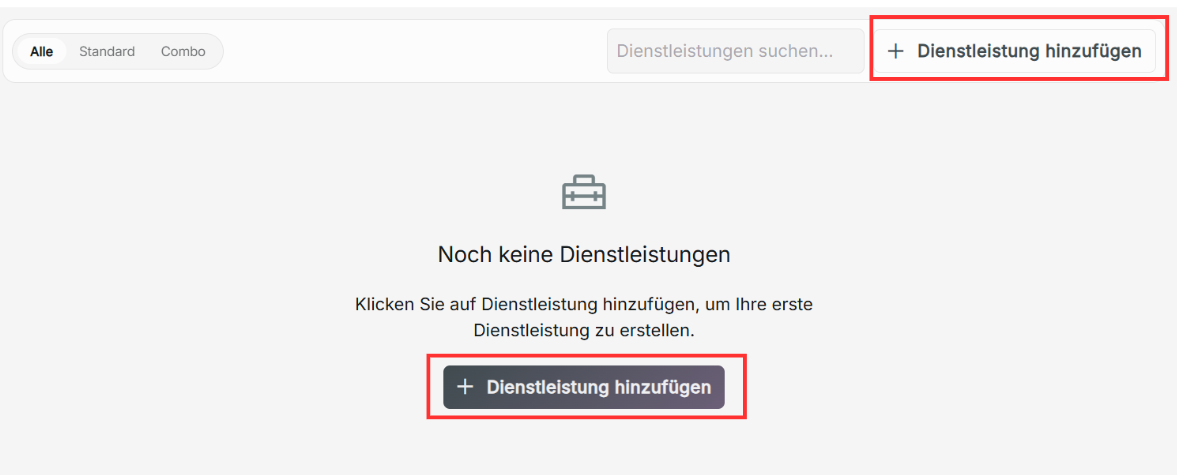
To add a new service for your organization, click the Add Service button. Under creating a new service, you can add the name of the new service, a description of the service provided, the color that the service will appear in the calendar as, the display order shown in the booking wizard, the duration of the service, the price of the service, the currency, and whether to include VAT in price. You can choose if the service you are registering will be visible to customers booking using your booking wizard. This can be toggled on or off by editing your service after creation.
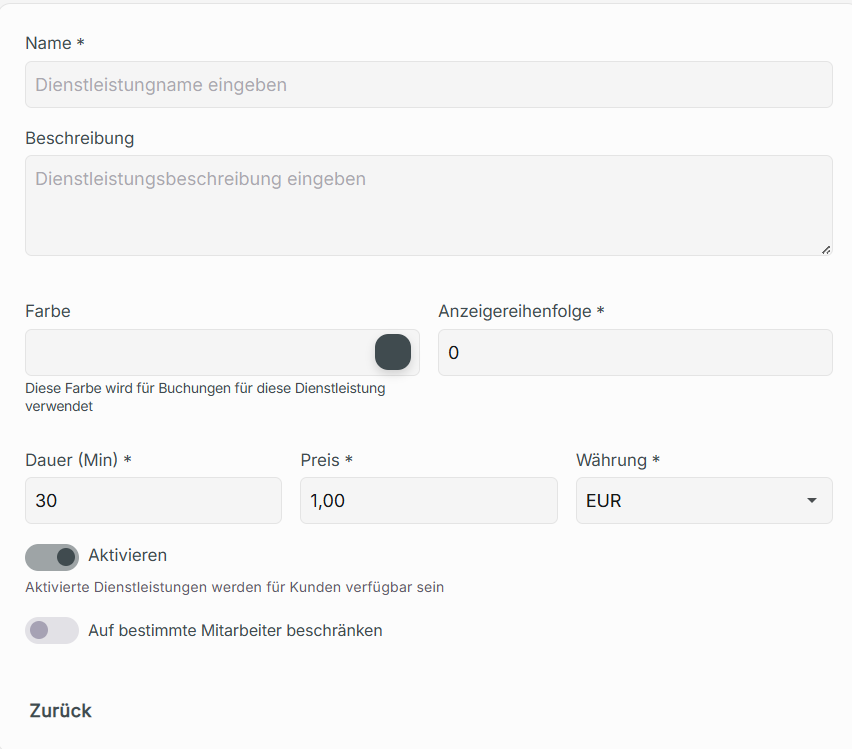
Combo Services
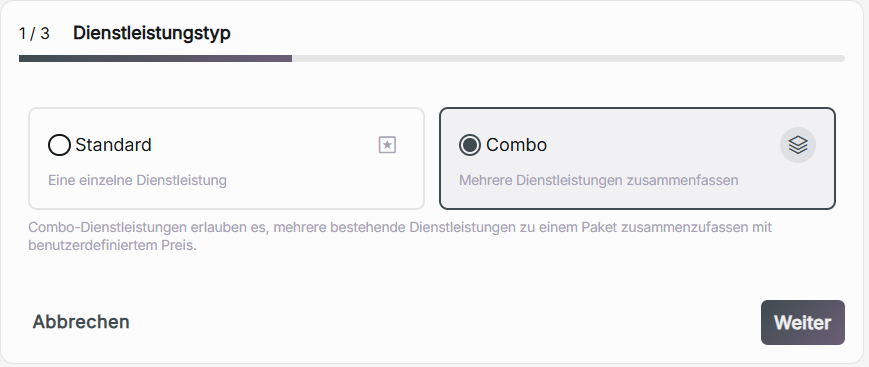
To create a combo service, you need at least 2 services created in your current shop to have access to this option. Once there are 2 services available, when adding a new service, you will have the option to choose between creating a standard or combo service.
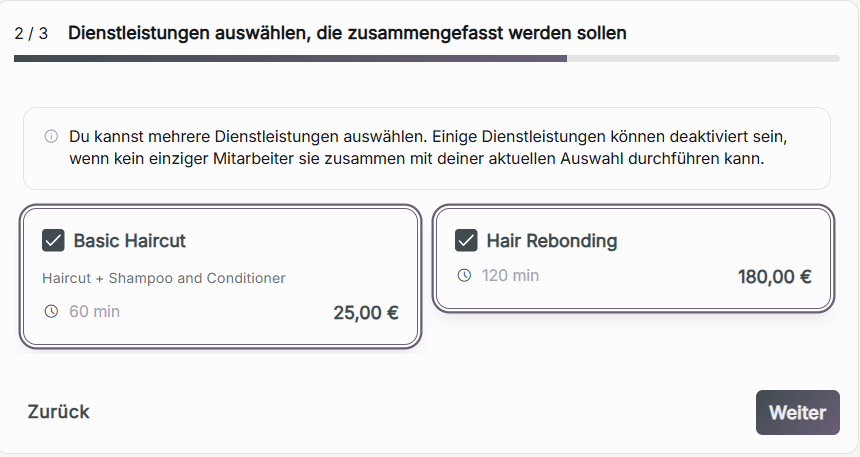
You will then choose the services to combine for a combo service. More than two services can be combined for one combo service.
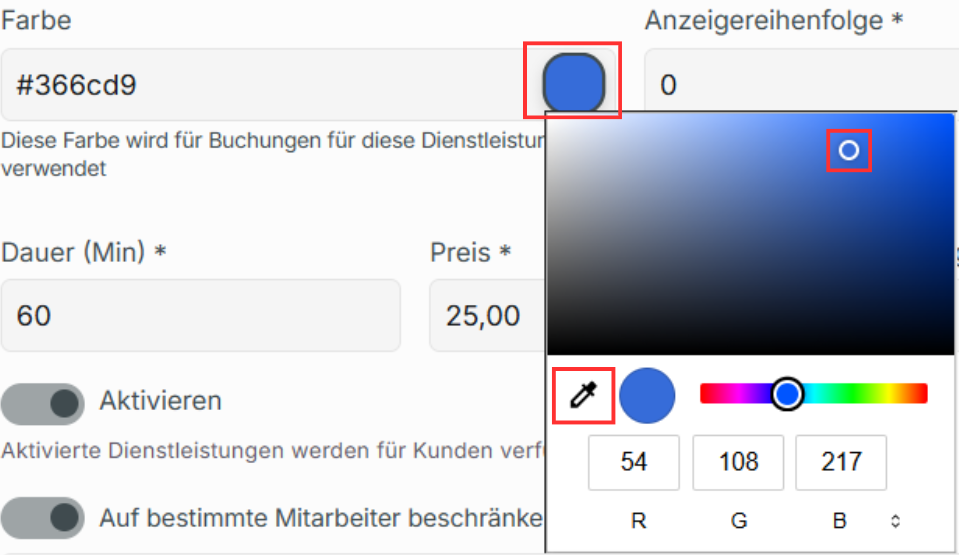
Color of Service – This refers to the color your service will be shown as on your booking calendar. To change the color the service will be displayed as, click the box with the currently selected color to change the value, hue, and saturation. You can also input your desired color using RGB or the color dropper.
Display Order – In ascending order, the number written is the order your service appears in your wizard booking.
Include VAT in price – It is optional if you want to include the VAT percentage in your service.
Activate – You can choose if the service you are creating is visible to customers to book on Zynday. This can be changed later.
Limiting Services to Specified Staff
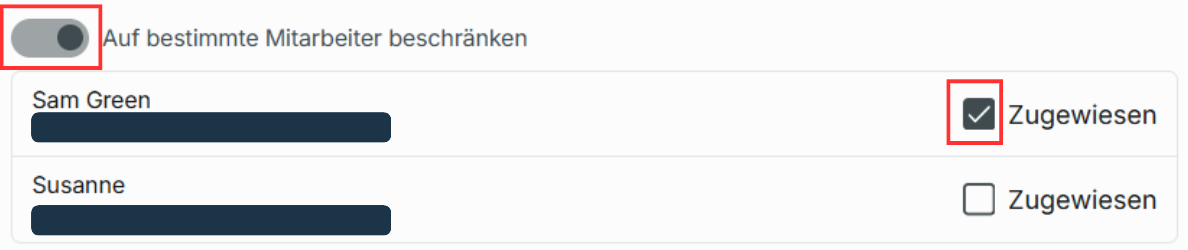
You can choose to limit a service to specific staff on a standard service by toggling Limit to specific staff on and then choosing the desired staff. You cannot limit specific staff on a combo service, even when a combo service is created from a standard service limited to specific staff. Combo services will be available for all employees to book.
The name, color of your service, display order, duration, price, and currency are all required to create a new service. Click Create to update the services provided. Adding a service cannot be performed by the contributor role.

Editing a Service
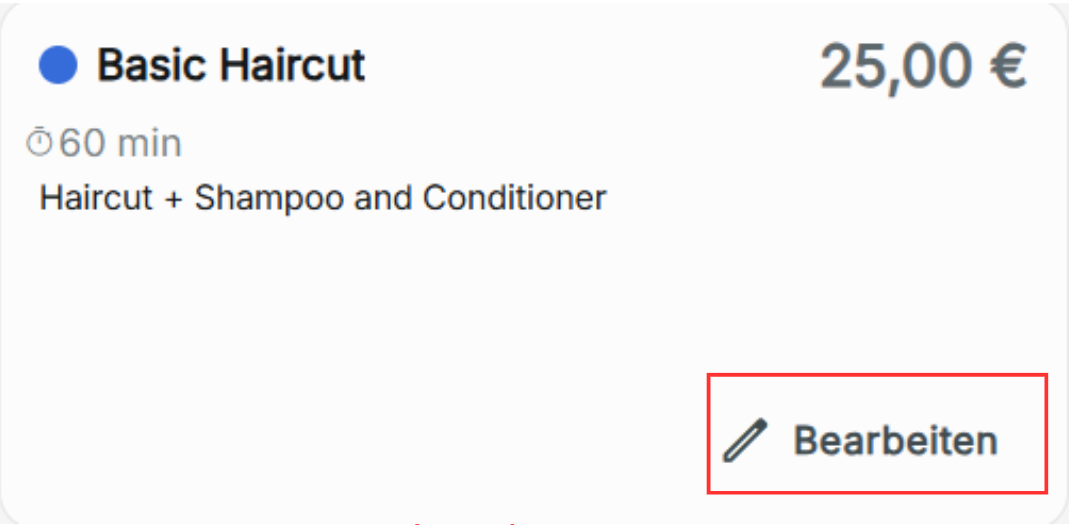
To edit an existing service, click Edit on the card of the service you wish to change. Once you are finished, click Save Changes to update the service. Editing a service cannot be done by a contributor staff role.
If you are editing a combo service, you can view the standard services that make up the combo service.

Deleting a Service
To delete a service, in the edit service page, click on Delete Service at the bottom. This action cannot be undone. You cannot delete a standard service that is part of an existing combo service. Deleting a service can only be performed by an admin or owner role.

When you delete a service, if there is an existing booking with the service, the booking remains in the system. You will have to manually delete the booking separately.