Branch Settings
Click settings when on a shop branch, which navigates you to your branch's settings, where you can manage your branch's general settings, bookings, booking hours, and annual leave. This page can only be accessed by the admin or owner role.

General
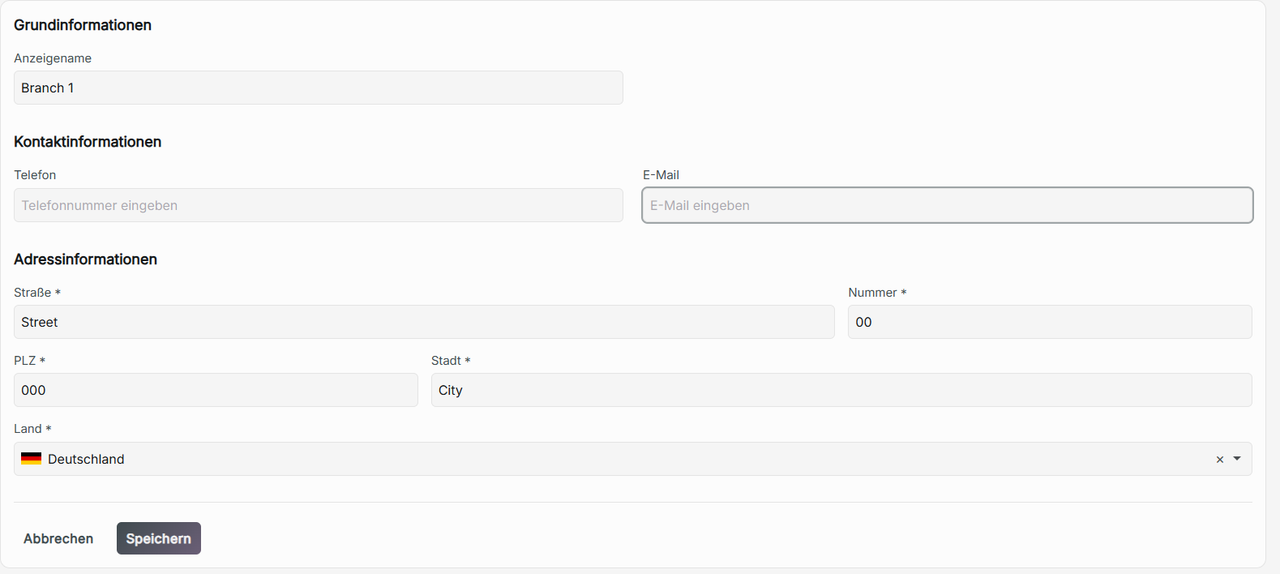
Update the display name, contact information, and address information of my shop's branch
In the selected branch of your organization, under settings in calendar, you will be navigated to general settings. There, you can change the current display name of your shop's branch, edit the shop's branch phone number and email under contact information, and update your address information. Once you are finished updating the information, click Save to update.
Deleting a branch in my organization
In the selected branch of your organization, under settings, you will be navigated to general settings. At the bottom of the general settings, there will be a button to delete the branch of the organization and all the associated data. Hold Hold to Delete to remove from your organization the branch you are currently on. This action cannot be undone once performed. This action can only be performed by the owner of the organization.

Bookings
At the top of the bookings tab, you can enable and disable accepting public bookings of the branch by clicking the toggle under Accept Public Bookings**.** When disabled, you cannot view and edit booking settings, booking links, and QR code. Additionally, only staff can create new appointments. Accepting public bookings is to be set up individually for each shop in an organization. This page can only be accessed by the admin or owner role.

The booking wizard link is not working
If the link to the booking wizard for the branch cannot be accessed, then there is a possibility that public bookings are turned off currently.
Booking settings
Creating a custom URL for my branch
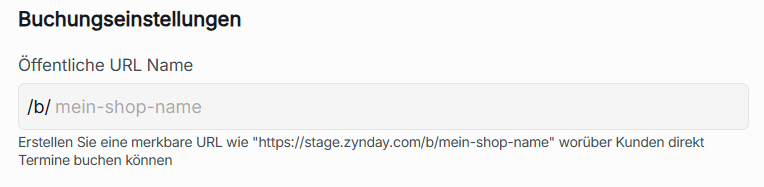
You can change the public URL name under Booking settings found in the Booking tab of your branch's organization settings.
Insert your own custom URL and click Save to update the new public URL name. The new URL can be found and copied under Booking Links, called Custom Booking URL.
Failed to update the branch public URL name
The public URL name you are choosing has already been taken by another branch. Choose a public URL name that is not yet claimed.
Adjust the time frame for bookings and cancellations allowed in advance for my shop's branch
Editing the time frame a customer can book an appointment in advance can be found in booking settings.
- Advance booking hours – type the amount of hours before the appointment start time a client can book in advance. The client will not be allowed to book an appointment if they do not book at least the set amount of hours ahead of time. The number inputted below refers to the amount of hours.

- Maximum advance booking (days) - determines how many days in advance a customer can book. They will not be allowed to book a day later than the amount of days set. If 0 is inputted, there is no limit to the days a customer can book in advance. The number inputted below refers to the amount of days.

- Cancellation notice (hours) - is for adjusting the amount of hours before a customer is unable to cancel. The customer cannot cancel within the number of hours set before their scheduled appointment. Staff can still cancel. The number inputted below refers to the amount of hours.

Click save to update the changes set for any change.
Booking Links
This is where you can share the link to your shop's branch's booking wizard using either your custom booking URL or standard booking URL. Each URL is separate from each other for a shop's branch in an organization. You can only access this page if you are the admin or owner role.

Click copy on either URL to share with your customers so they can book services. If there is no custom booking URL, you can create one under booking settings. You can also share the link to different platforms directly by clicking Share Link.

Open booking page – links you to your branch's booking wizard.

The booking URLs will not work if Accept public bookings is toggled off.
QR CODE
This is where you can view, regenerate, and download the QR code that links to your branch's booking wizard. Each QR code is unique to each branch's shop. To find the QR code, go to bookings of your organization branch's settings. You can view the QR code under QR code.
Click View QR Code to open your current QR code.

To download your branch's booking wizard QR code to your current device, click Download QR code.

To create a new QR code, click Regenerate QR code.

Booking Hours
The booking hours tab can be found under the branch's organization settings. Booking hours is where you can set the branch's and staff's booking hours. This page can only be accessed by the admin or owner role.
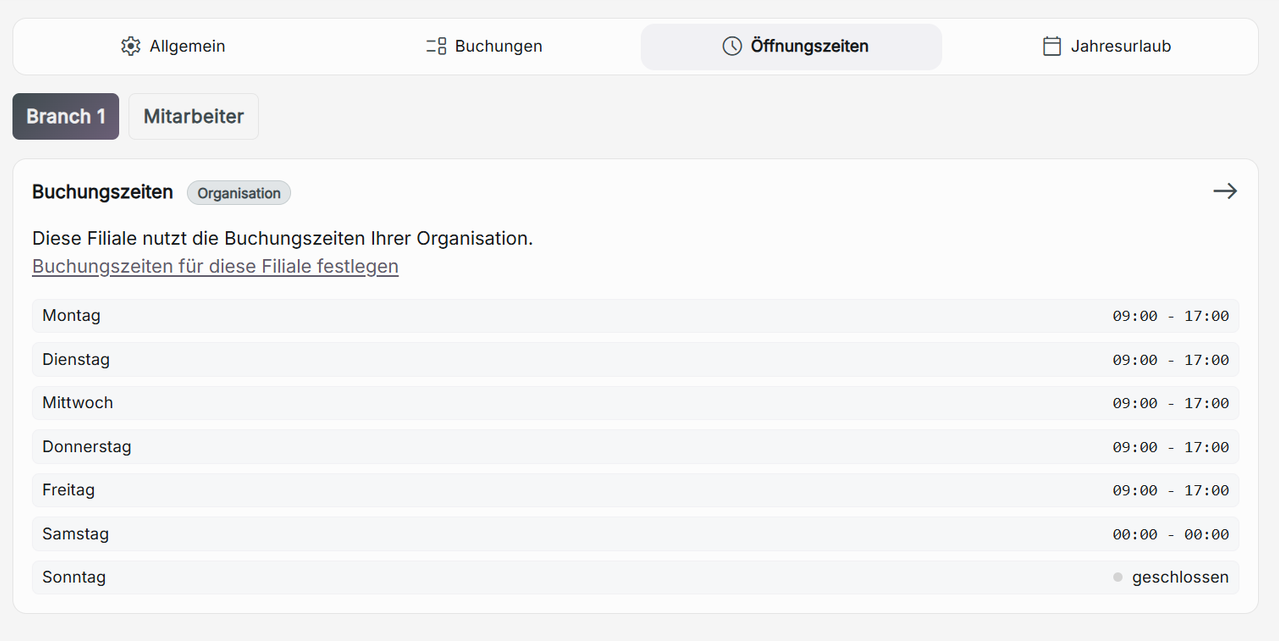
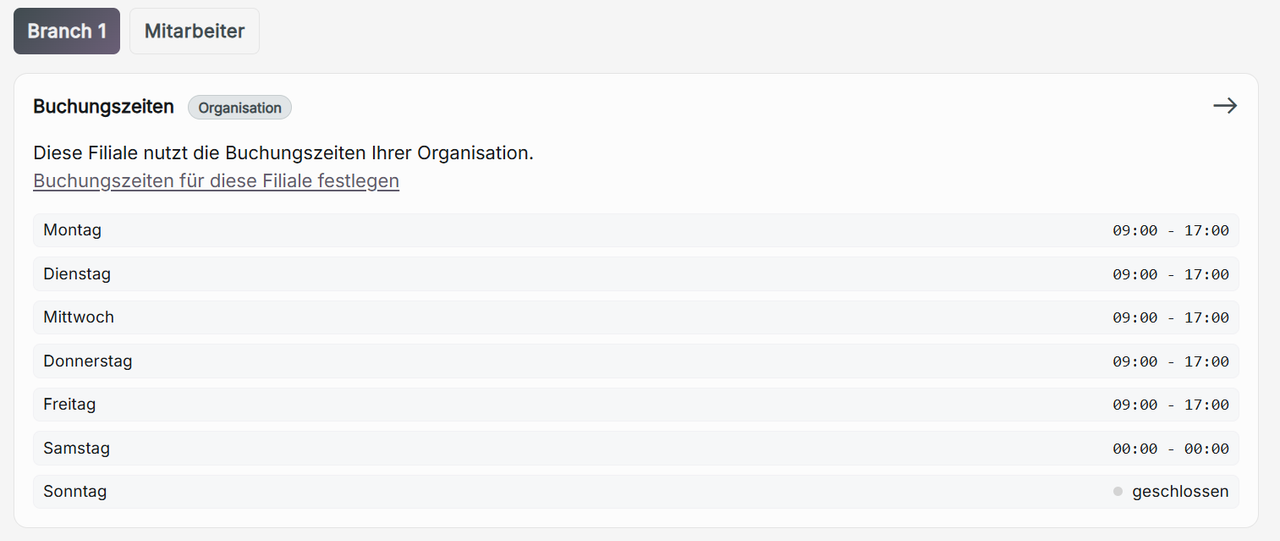
If there are no booking hours set in the branch, the shop uses the organization's set booking hours.
- Organization – The branch follows the organization's set booking hours.
- Shop – The branch follows custom set booking hours separate from the organization.

If you edit the shop's or employees booking hours to remove the availability where a booking is already scheduled, the booking appointment is still kept. You will have to manually delete the schedule in the calendar to remove it from the inactive booking hours.
Changing Organization Booking hours
When the shop's booking hours are set to organization, if you are the owner role, click the arrow to edit the organization's booking hours.
Shop Booking Hours
This is where you can create and manage booking hours separate from the organization's scheduled booking hours
Setting up a shop's booking hours
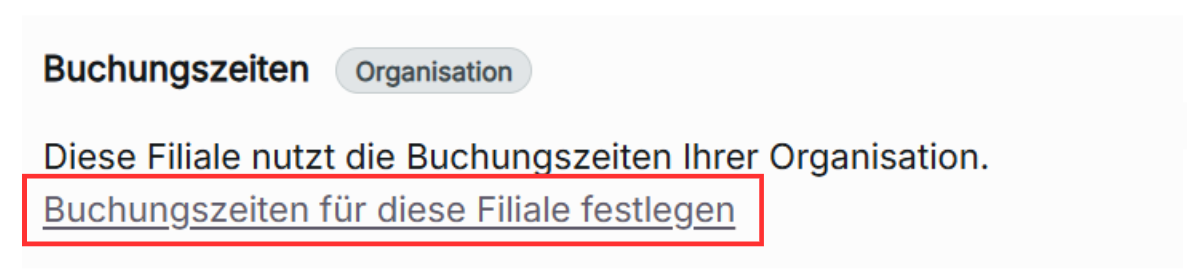
If you have no current booking hours set separately from the organization, click on Set up booking hours specific to this branch.
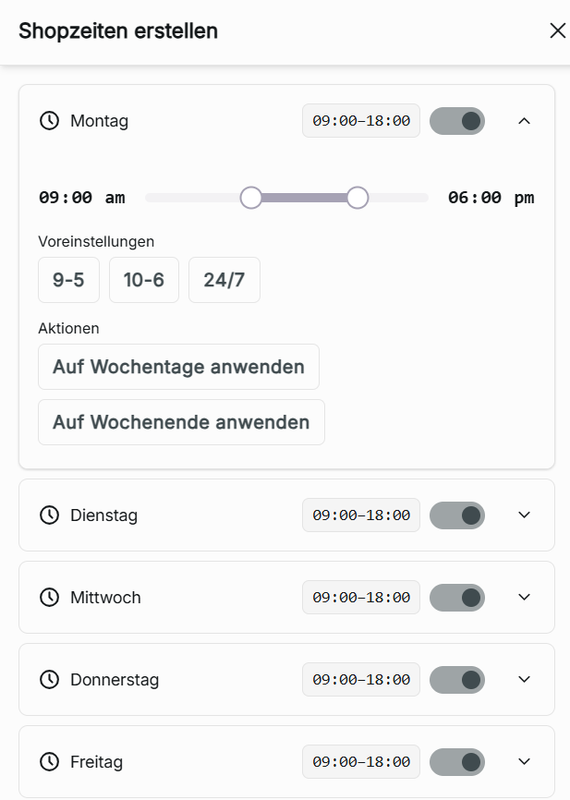
Similarly to creating the organization's shop hours, you can individually adjust each day's shop hours using the slider for each day and toggling days on and off. In the drop-down arrow, you can use presets for the shop's hours, and you can use actions to automatically apply the hours of the day you are adjusting to automatically copy the same hours by clicking, Apply to Weekends. When you are finished adjusting the booking hours in the pop-up, click Create at the bottom.
Editing a shop's booking hours
To edit the booking hours of the branch, click on the edit icon under the shop tab's booking hours. Here you can readjust the shop's booking hours. Click Update to save the changes.

Deleting a shop's booking hours
To delete a branch shop's booking hours, under the edit icon under the shop tab's booking hours, click delete. This action cannot be undone. The booking hours will reset to the organization's assigned booking hours.

What if I want my booking hours to have a gap of availability in between booking hours?
If your business runs with a break in between a scheduled day with no booking hours, this can be created through blockers in absence requests.
Staff Booking Hours
In the booking hours tab of the branch's organization settings, click on staff. Here you can set the individual staff hours of each employee assigned to the branch. You can search staff members using the search bar to view the individually set staff booking hours.
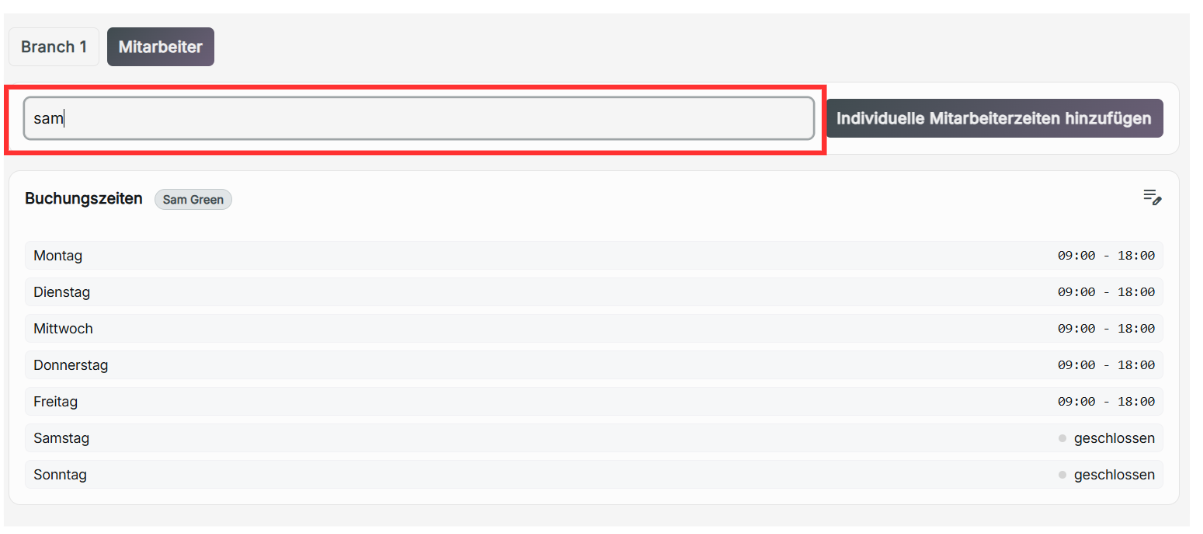
Adding Staff Booking Hours
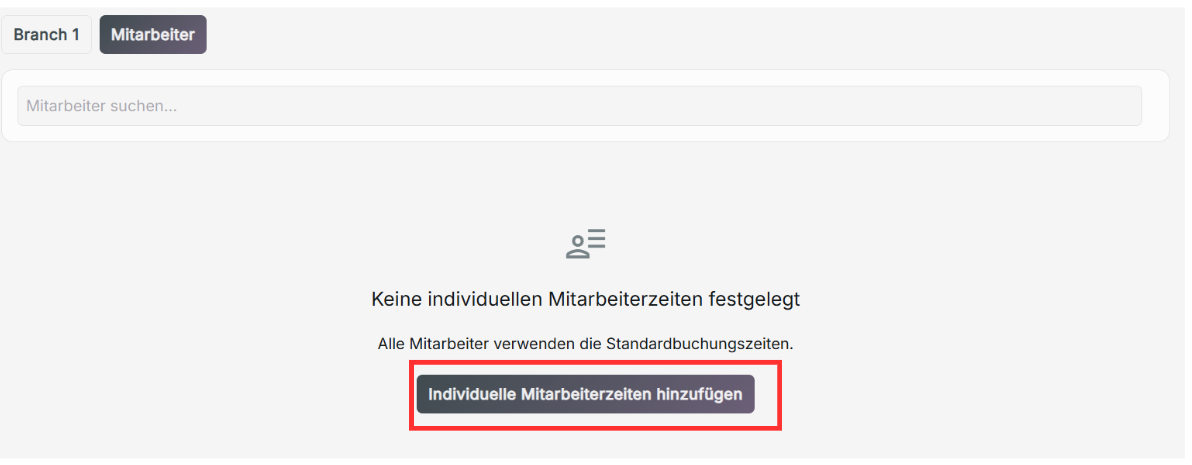
If there are no individual staff hours set, by default all staff members use the default booking hours set by the branch's shop or organization. To add individual staff hours, click Add Individual Staff Hours.
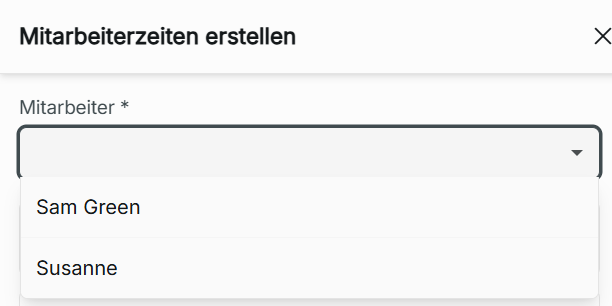
Choose a registered employee at the top drop-down menu. Once the staff hours have been adjusted, click Create to update the staff hours for the selected employee.
Editing Staff Booking Hours
You can only add employees who do not yet have their individual booking hours set. To edit existing booking hours of an employee, click the edit icon in the top right of the employee's booking hours. Click Update to finalize the changes.

Deleting a staff's booking hours
To delete an employee's individual booking hours, click on the edit icon in the top right of a staffs set individual booking hours. At the bottom of the edit pop-up menu, click Delete. This action cannot be undone.
