Account Settings
The display picture at the top right corner of the webpage gives access to your account profile. You can change the theme, access the account owner's settings, and log out.

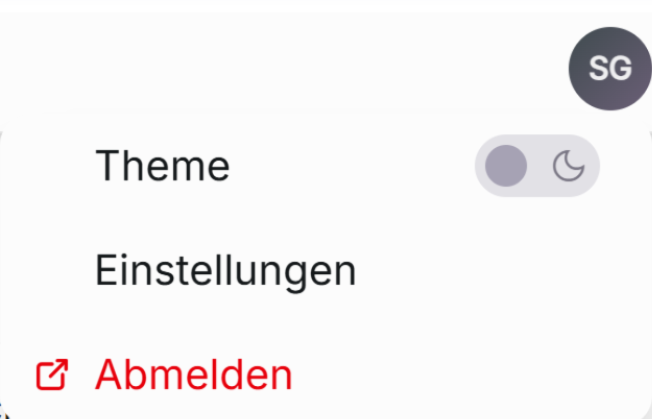
Theme
To switch themes between viewing the page in light or dark mode. To change your theme on the drop-down menu after clicking your display picture, toggle the moon or sun icons next to Theme.
Logout
To log out of your Zynday account, on the drop-down menu under clicking your display picture, click Logout.
Account Settings
To go to your account settings, click on your profile picture, and then under the drop-down window, click Settings to view.
Account
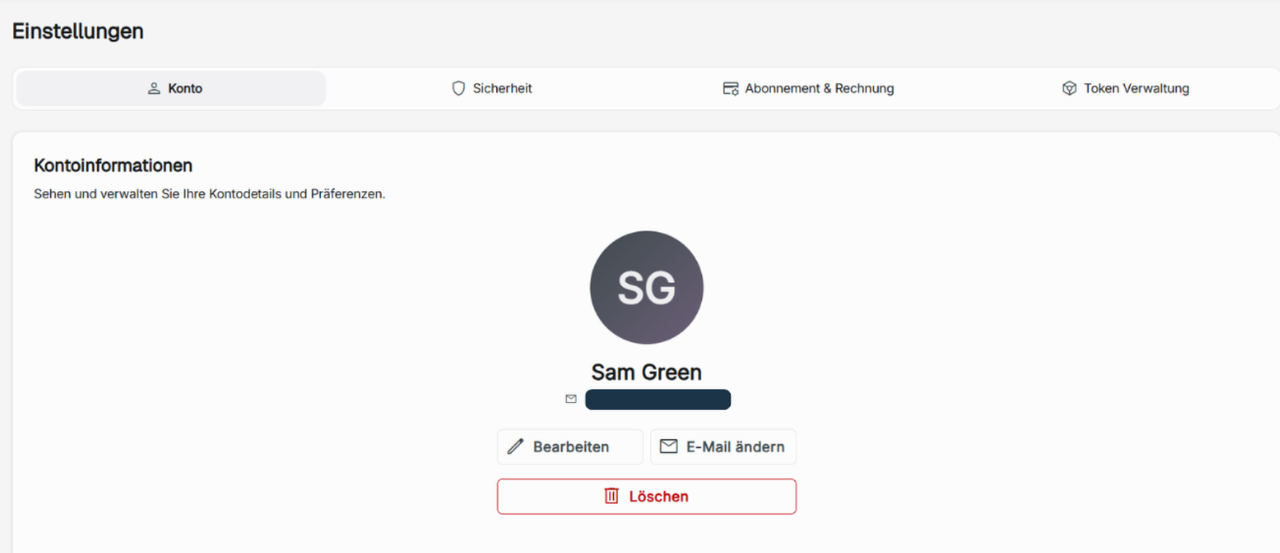
In Account Information, you view and manage your account details and preferences. You can view the email your account is currently registered to.
Edit Profile
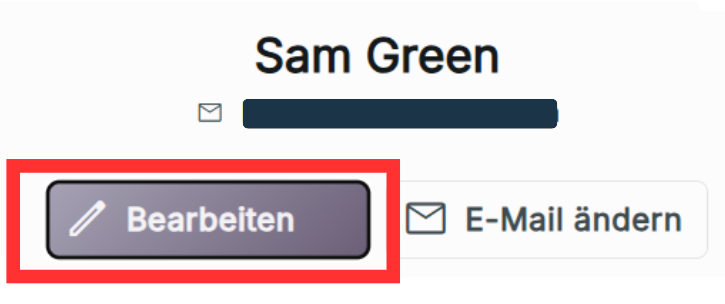
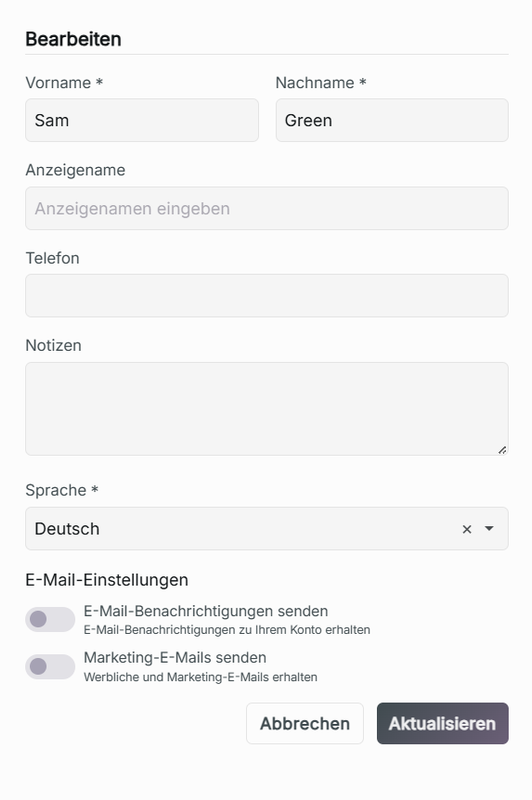
You can change your name, display name, and phone number, and add notes. This will be the personal information viewed by other users in the organization and booking wizard.
Change Languages
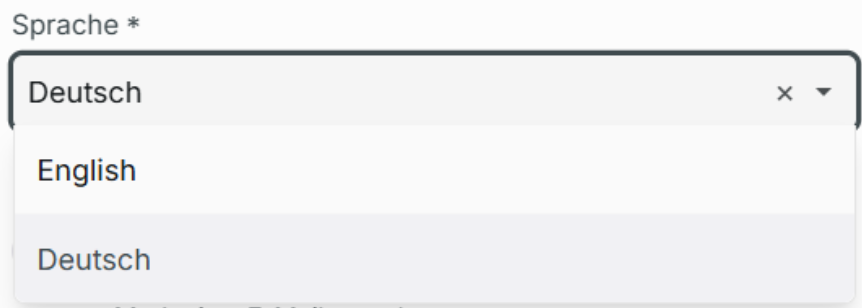
Under Edit Profile, you can switch the language on Zynday. The 4 languages to swap between are English, German, Spanish, and French.
Email Preferences
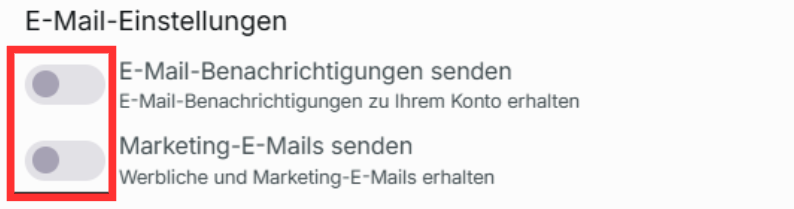
You can also toggle on and off email preferences
- Send email notifications about your account.
- Send promotional and marketing email notifications
Click Update to change your preferences.
Change email
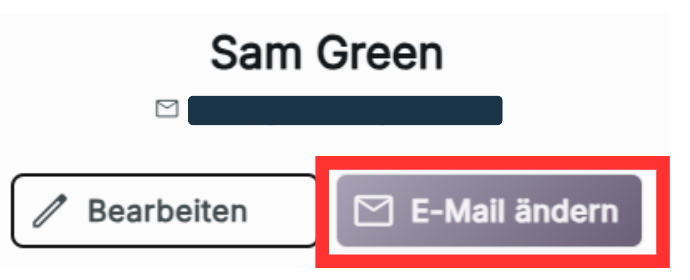
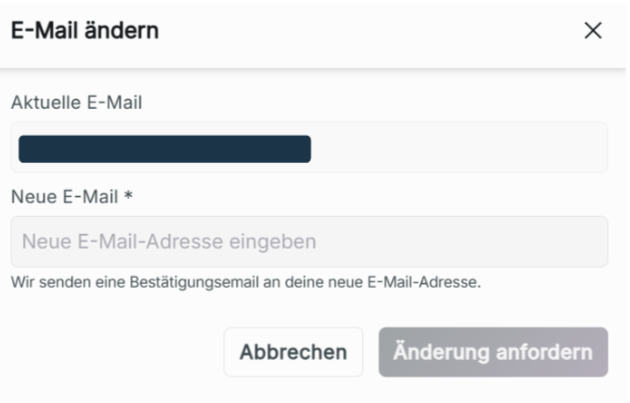
Click Change Email to update to a new email address. Enter the new email you wish to change your account to, then click Request Change.
Confirm email change
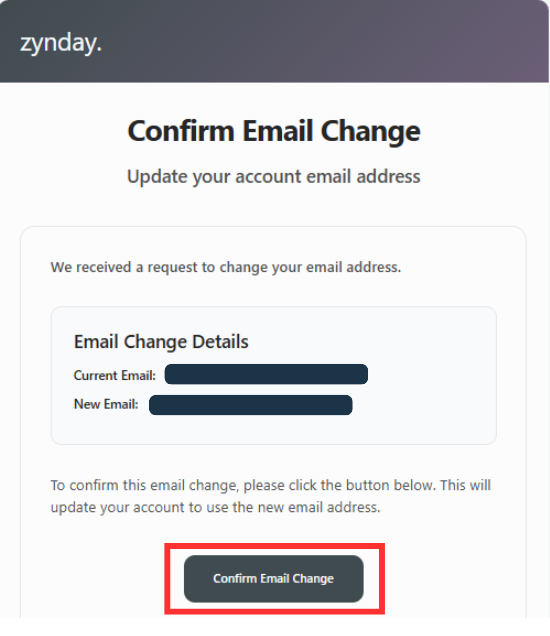
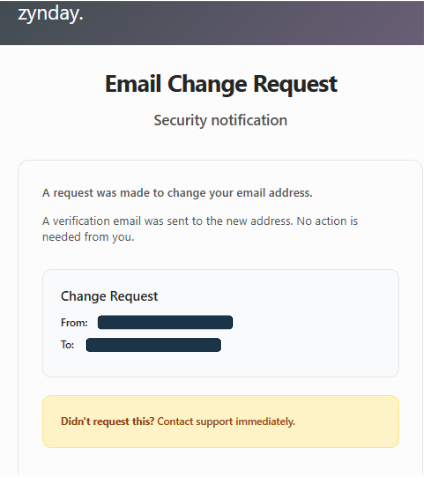
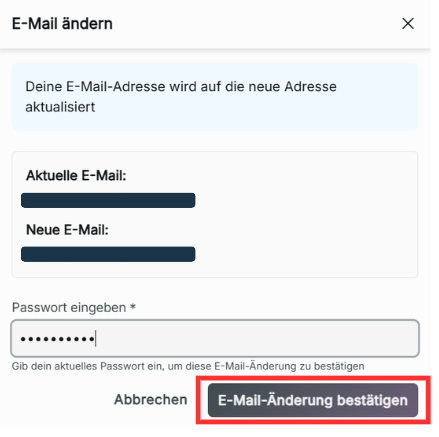
Once you have requested an email change, go to the email inbox that you wish to change to. Zynday will send an email confirming the email change containing the details of the current email and new email. Click Confirm Email Change. This will link you back to your account information settings in your Zynday account, where you enter your password to finalize changing your email.
You will also receive an email to the current registered account that an email request has been changed. If you have not requested a change in email, contact support immediately.
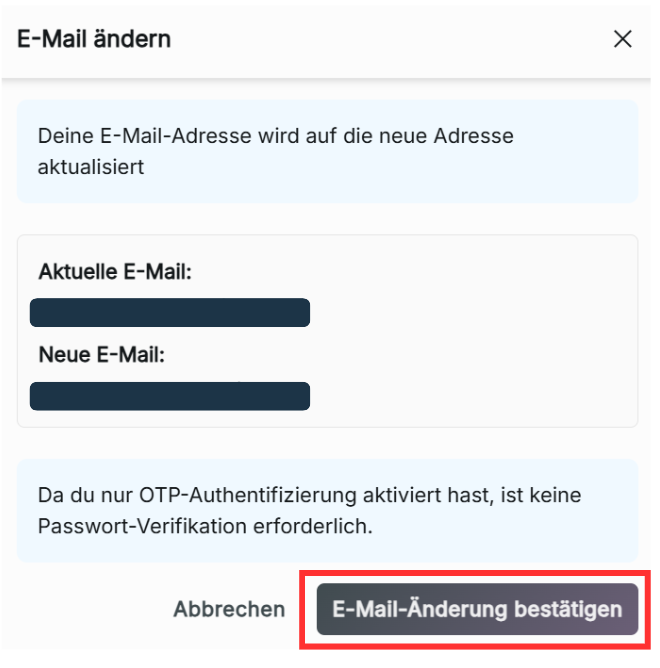
If there is no password set on your account, no password verification is required. Click Confirm Email Change to update your account to the new email.
-
The device you are using to click Confirm Email Change in your email must currently be logged in to your Zynday account so that you will be linked to confirm the email change.
-
If you have requested to change your email multiple times, make sure you choose the most recent email sent to confirm the change.
Delete Account
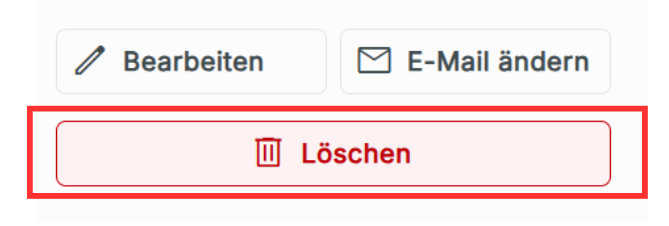
To delete your account, do a long hold on "Hold to Delete." Once performed, an email will be sent to confirm the deletion of your account.
This action cannot be undone, and all the data associated with your account will be removed. If you are a business owner role, your organization and all the data inside will also be removed.
Security
Manage your authentication methods and password security.

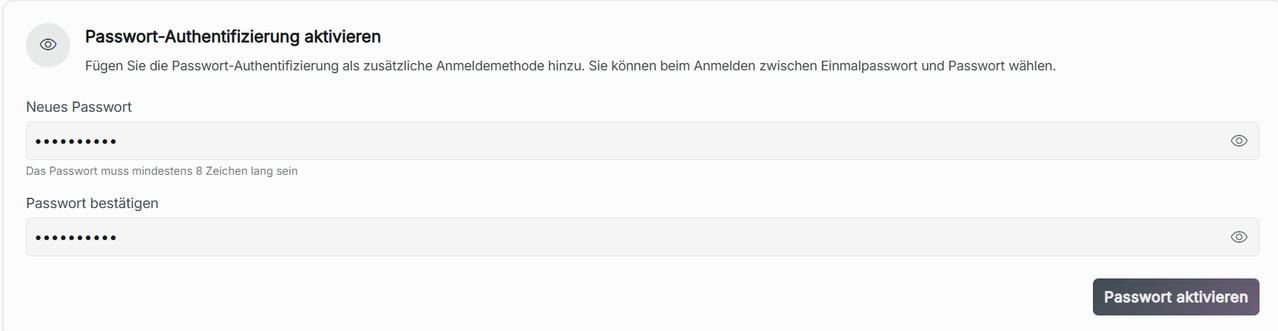
Enable Password Authentication
If you do not have a password set, you can choose to set a password for your account with enable password authentication. This will give you an alternate login other than using a One-Time Password (OTP).
Your password must be at least 8 characters long with at least 1 of all the following: special character, number, uppercase letter, and lowercase letter. Once you have typed your password twice, click Enable Password to confirm.
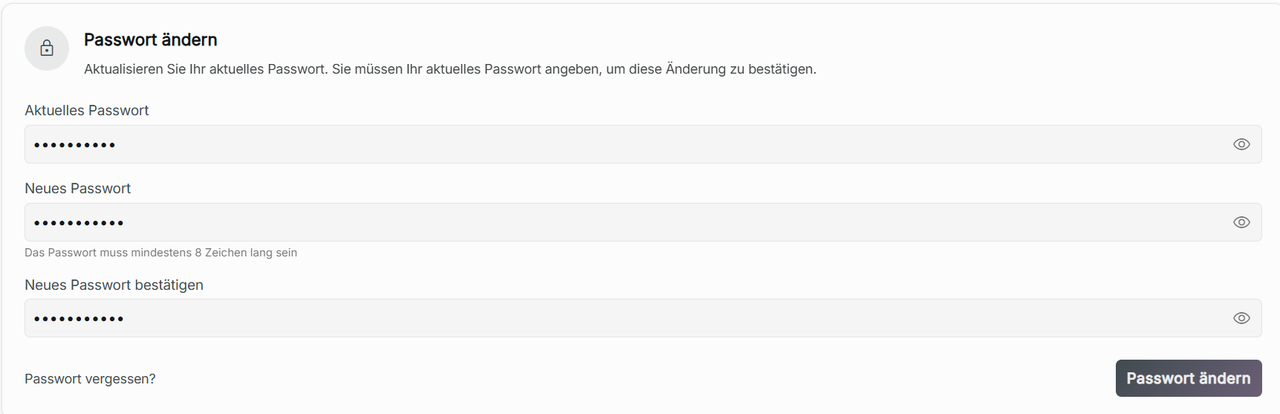
Change Password
Once you have a password set, you can choose to change your password by inputting your current password and then by entering your new password twice. Click Change Password to confirm.
Forgot password?
Click "forgot password?" which will send a verification code to your email.
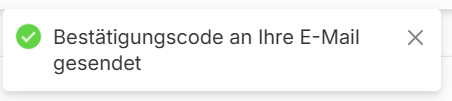
Reset Password will load on the security page below Change Password. Enter the 6-digit verification code sent to your email with your new password. Click reset password to change your password.
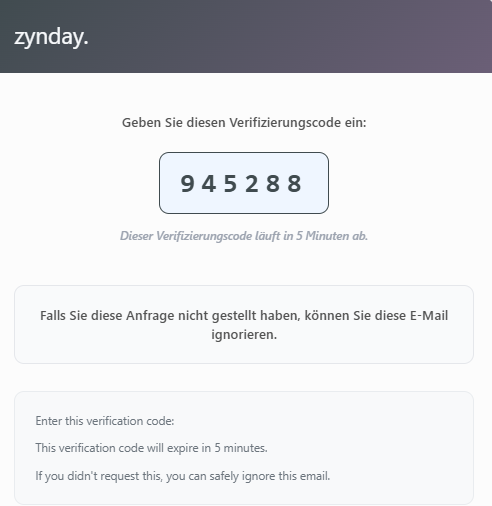
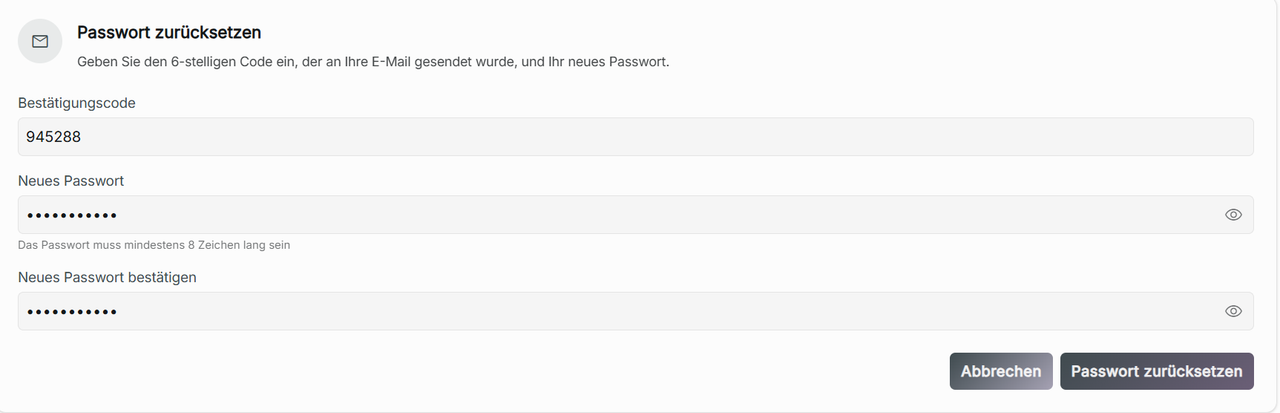
The verification code will expire in 5 minutes. If you fail to input the code in time, click Forgot Password again to send a new 6-digit code.
Disable Password
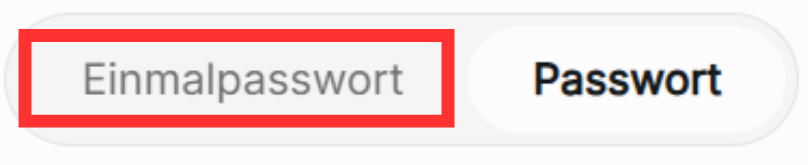
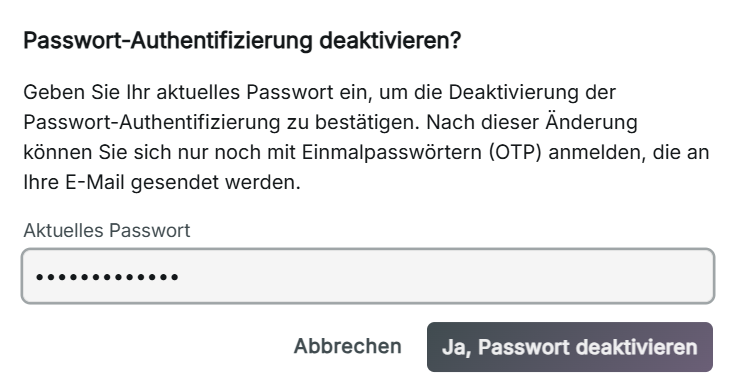
If you want to remove your password and switch back to logging in through only a one-time password, click "One-Time Password" to disable your current password. Typing in your current password and clicking Yes, Disable Password, will remove the password set to your account.
Subscription and Billing
Pay for a subscription once your initial 30-day trial expires. There are 3 packages available: Core, Flow, and AI+. Additionally, this can be subscribed to as solo, team, or enterprise. The payments can be chosen to be done monthly or yearly.
Packages Provided
Core— Direct support from the developers, and cancel monthly/yearly anytime, with no notice period needed.
Flow— All core features included with Point of Sale (POS) features for in-person payments.
AI+ - All Flow features included, with an AI-powered smart assistant for intelligent booking management and automated customer interaction.
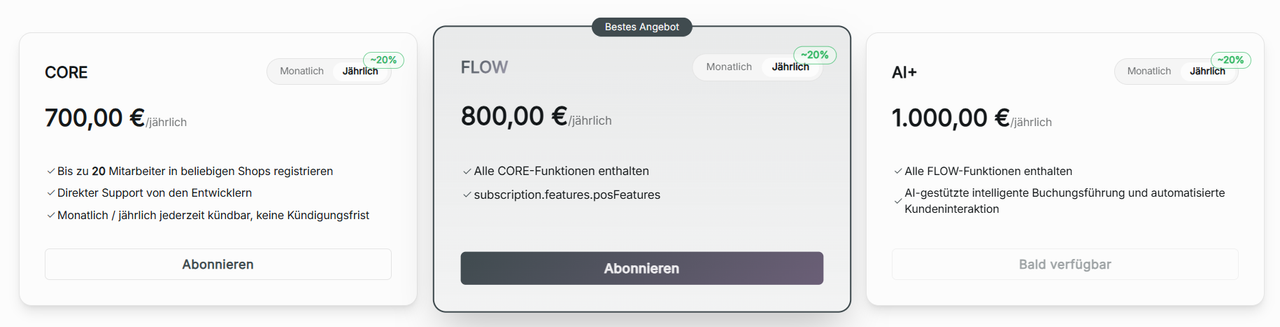
Solo - Choose between Core, Flow, or AI+. Registering up to 1 staff member and shop
Team— Choose between Core, Flow, or AI+. Registering up to 20 staff members across any shops
Enterprise— Automatically chooses the Flow package. Unlimited staff members and organizations, with priority support with a dedicated account manager, and custom integrations and API access. To purchase the enterprise package, click Contact Us.
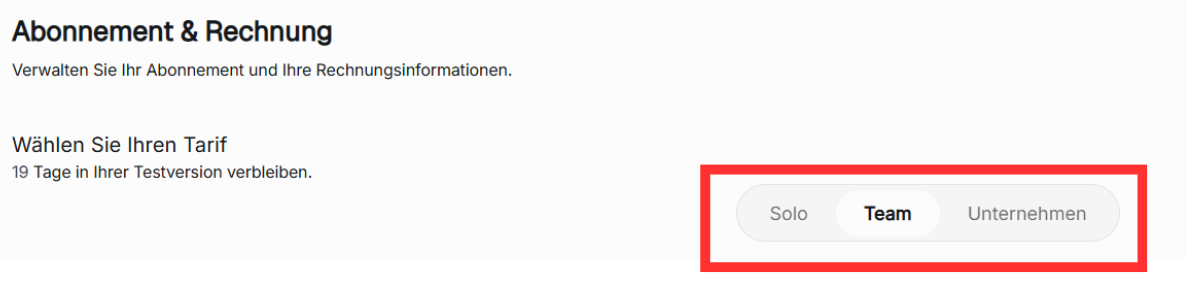
Choosing and purchasing your subscription
Choose your desired subscription, then click Subscribe. You will be linked to Stripe to complete your payment, or you can alternately choose to pay with Link.

All billings for Zynday are handled externally for subscribing, updating the package, canceling the subscription, or changing the billing type.
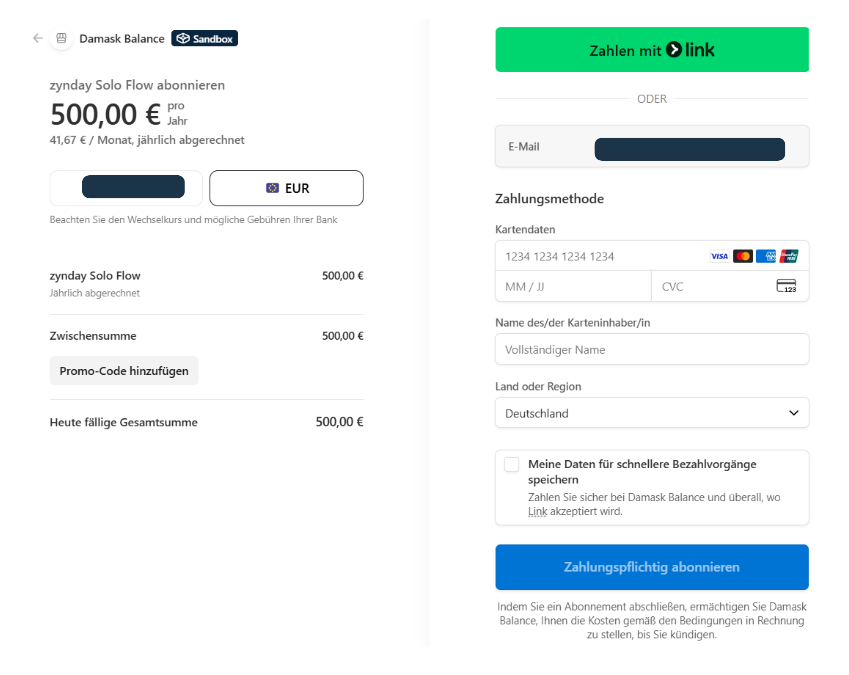
Once your payment has been processed, your subscription will be active.
Manage Subscription and Billing
When you next open subscription and billing, you can view your current package and status. Click Manage Billing to change or cancel your plan.
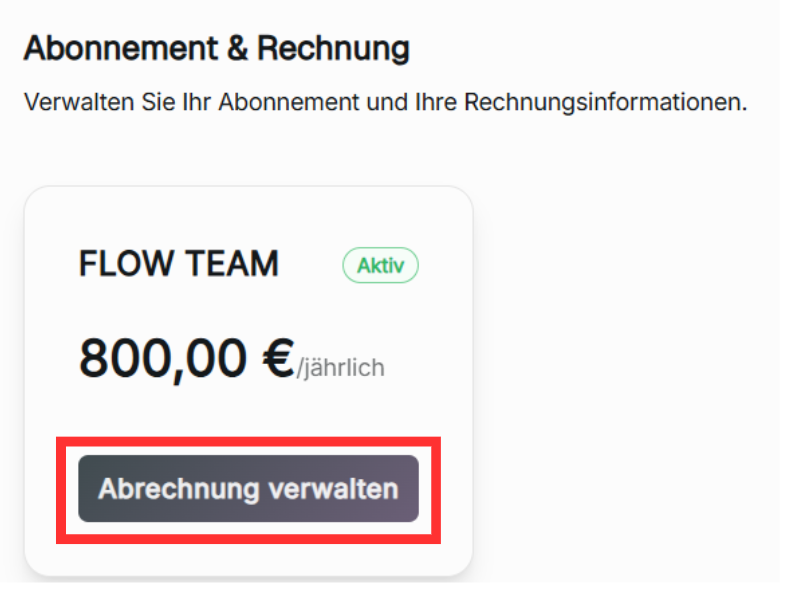
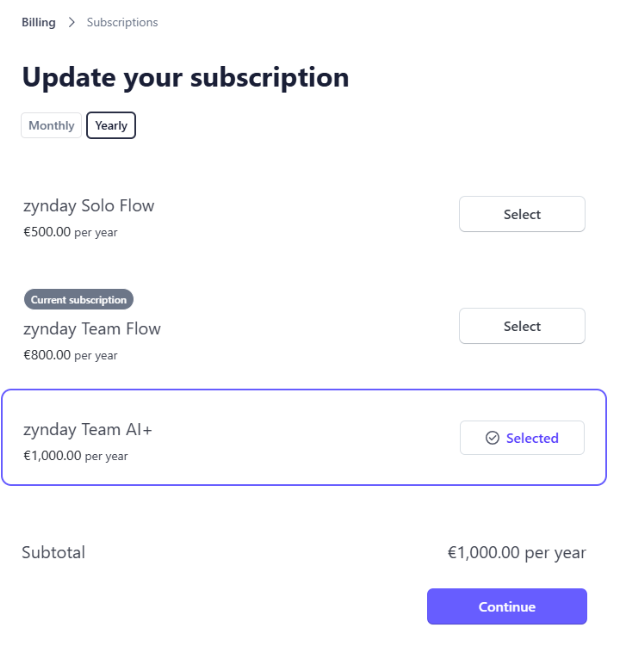
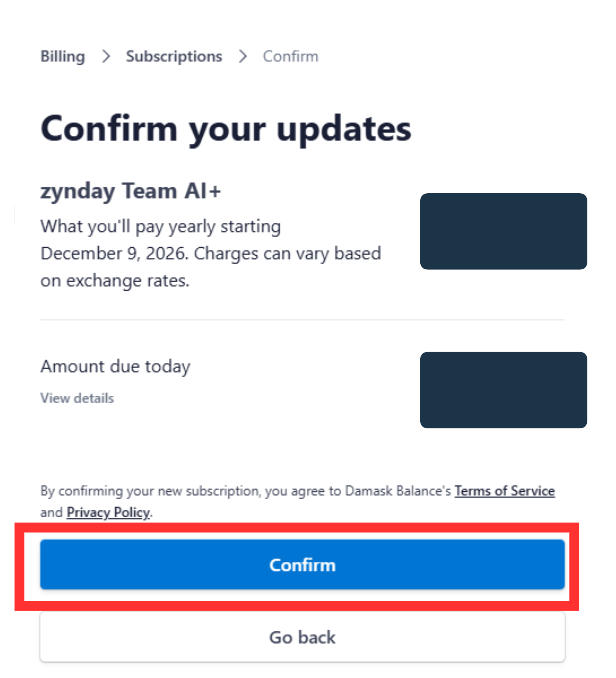
You will be linked to Stripe to view your payment details, and to either update or cancel your subscription. Choose update subscription to update to your new subscription, then click continue to proceed. If you choose to cancel your subscription, your subscription will be active until the end of your billing period. To do so, click Cancel Subscription**.**
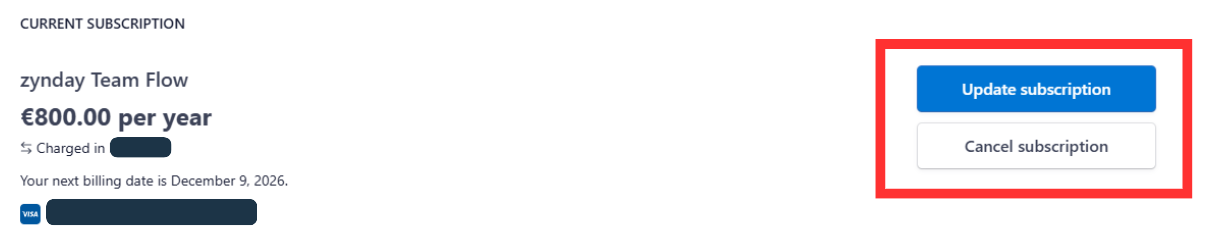
My billing won't go through?
Payment is done externally outside Zynday through Stripe or link. For inquiries, contact our support staff here.
Token Management
Manage your API tokens for integration with external services.