Staff
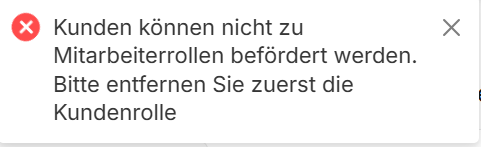
Staff is where you view, add, and edit the employees in your branch's organization. The owner of the organization is always assigned as an employee to every branch. Emails added as a customer cannot be added as staff to the organization.
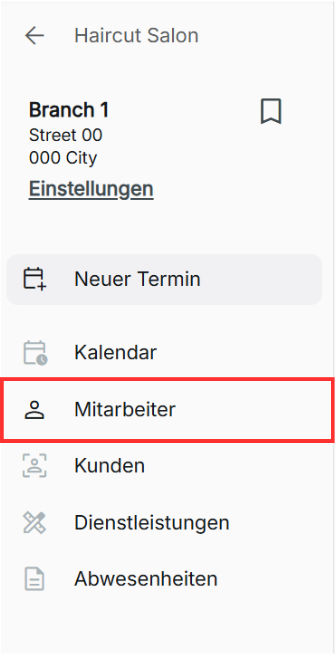
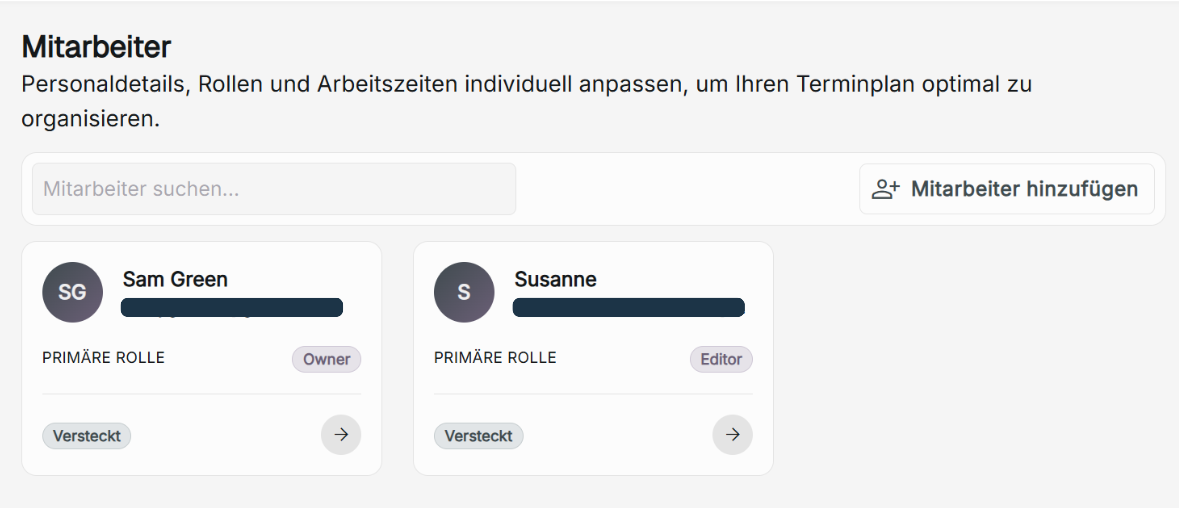
Adding New Staff to a Shop's Branch or Organization
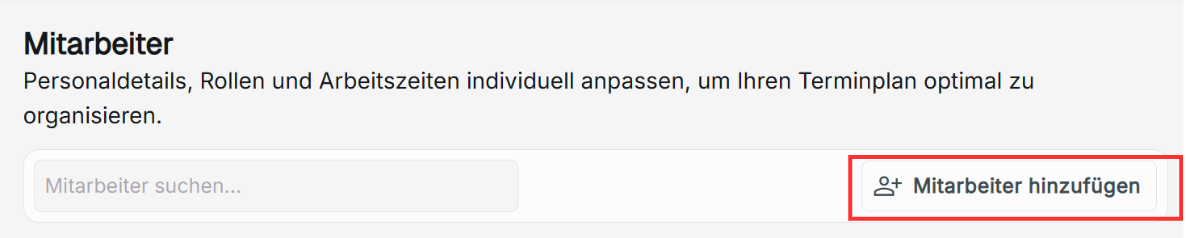
Click on Add Staff to add a new employee to your shop's branch. On the new pop-up window, you can add the new staff's display picture, their first and last name, display name, email, phone number, role, status, and the choice to assign to organization level. Additional notes can also be added if needed. This can only be performed by the admin or owner role.
Staff Display Picture
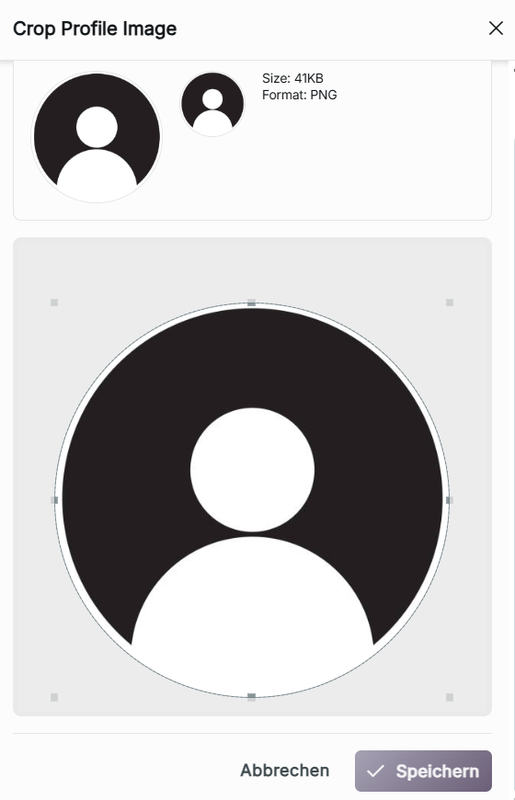
To upload a staff display picture, click on the circle icon in the top left of the pop-up window, then click Upload. Once you have selected your image, you can move and crop the image and preview the staff display picture on top. Once you are done, click Save to update.
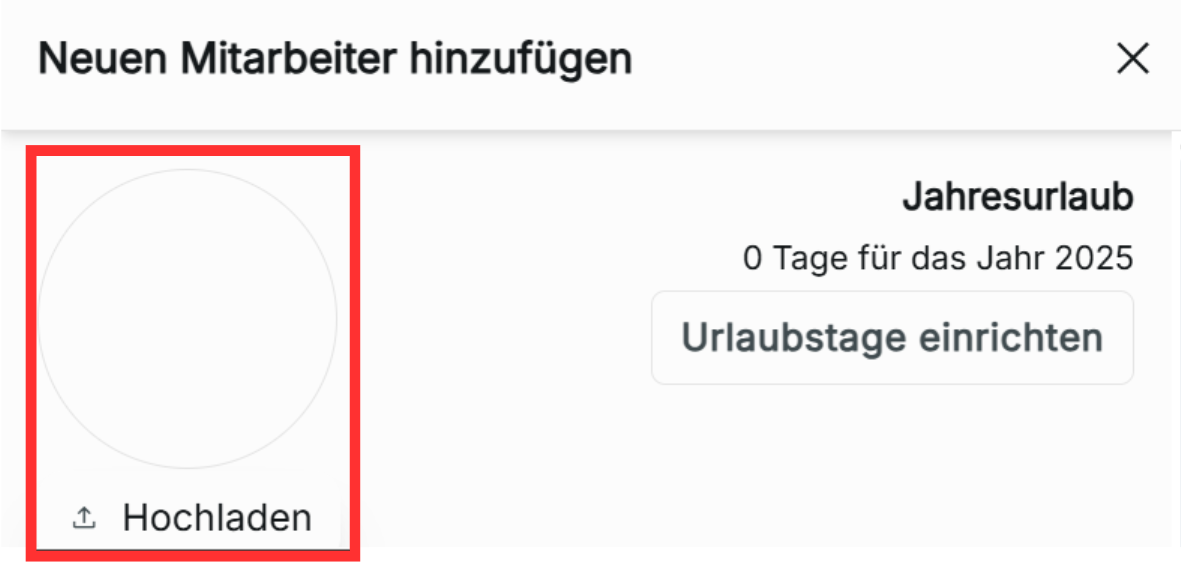
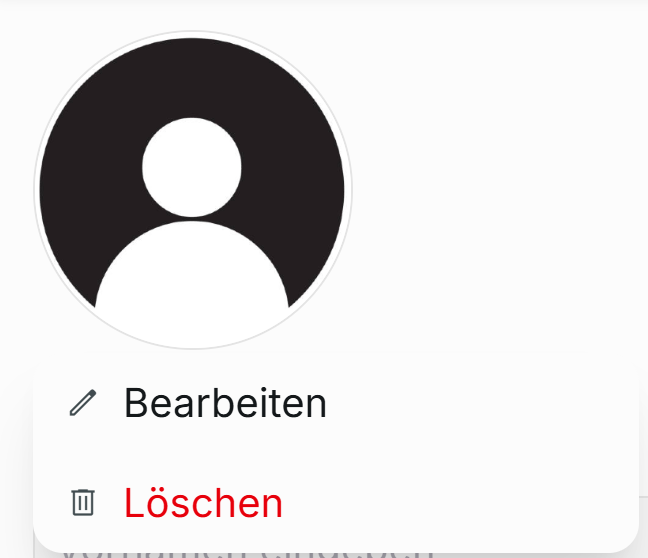
If you want to change or remove the uploaded image, click on the circle icon again to either edit or delete the image.
Setup Leave Allowances
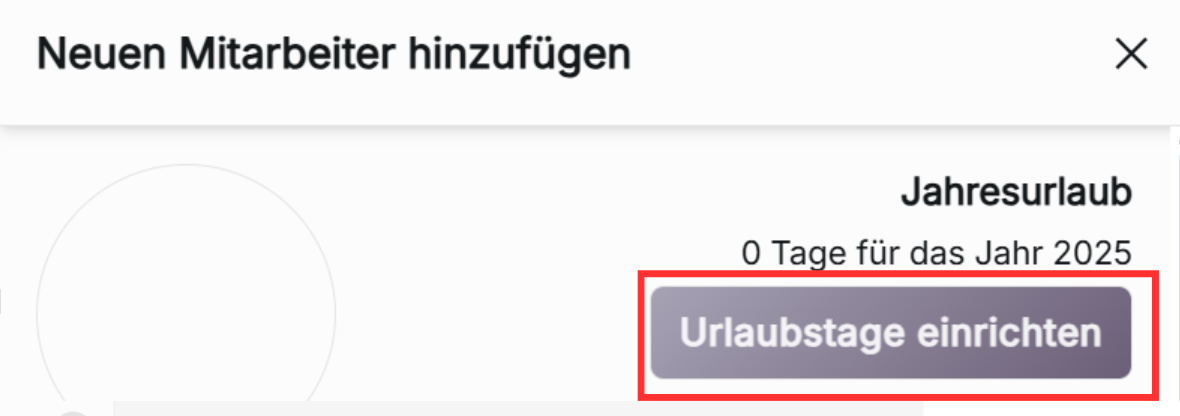
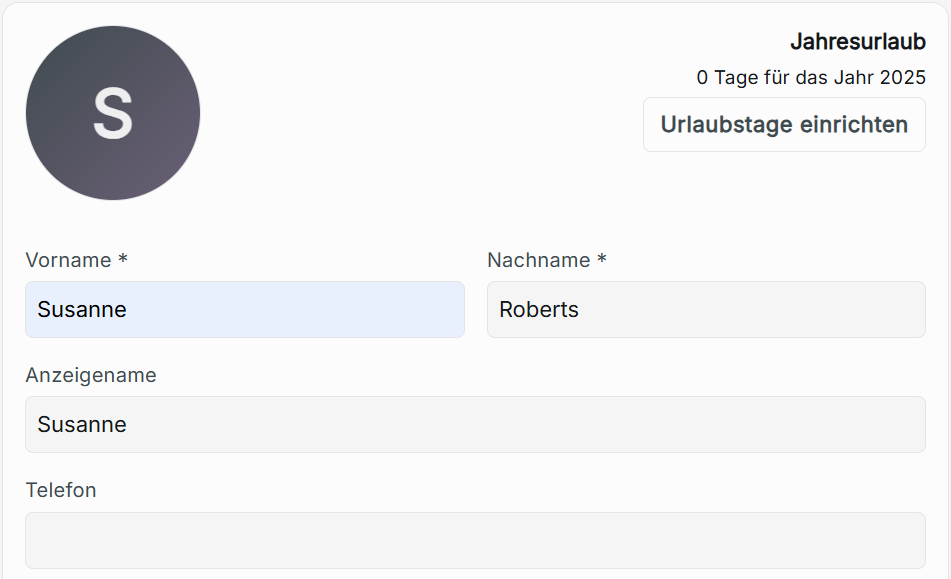
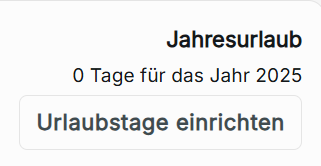
If there are no annual leave allowances for the year, you can click Set up leave allowances to link to create. This is only visible to the admin and owner roles. If annual leave allowances are set, view the amount of annual leave days that exist, are remaining, and have been used.
Personal Information
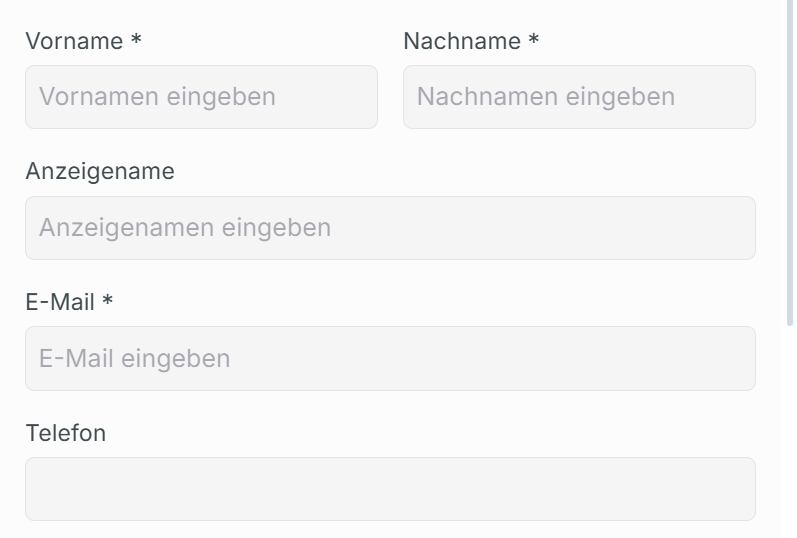
To add a new employee, the first name, last name, and an email are required to be filled in before proceeding.
Display name
This is the name that is shown to everyone in the organization and booking wizard.
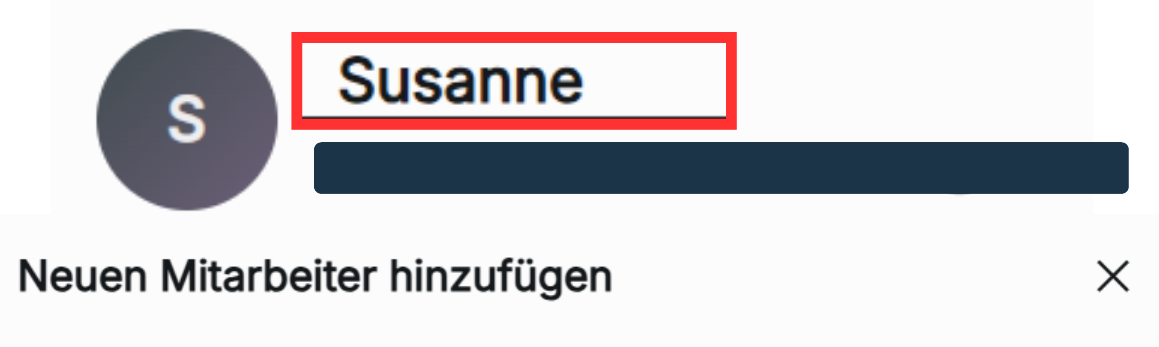
If the staff member's email being added to a branch or organization already is registered to Zynday, the first name and last name will follow the information already set by the added user. A user's personal information can only be edited and changed by the owner of the account.
The display name can be changed by the owner of the account and the owner role of an organization, with priority being given to the owner role in the organization.
Roles
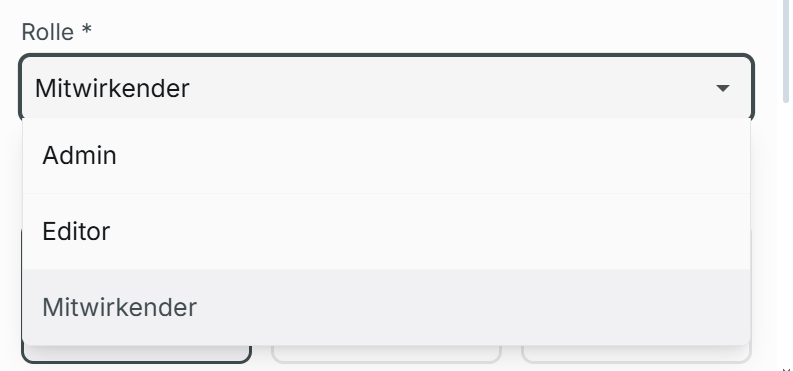
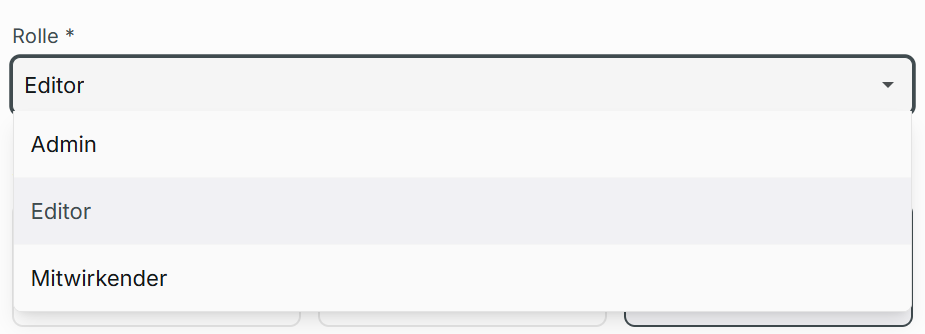
Determines the features an employee has access to in a shop branch's organization. The role is shared across all shops in an organization.
-
Contributor – They have access to viewing the branch's calendar, staff, customers, services, and absence requests. They can add new events, edit their personal staff account information (name and display name), and create absence requests for themselves. They cannot access the branch's shop settings.
-
Editor – They have access to viewing everything a contributor can view. They can add new events and edit existing bookings, can add a new customer, can add and edit services, and can create absence requests for themselves. They cannot access the branch's shop settings.
-
Admin – They have access to viewing everything a contributor can view. They can add new events and edit existing bookings, add a new staff member to a branch or organization, edit their personal staff account information (name and display name), change the role and status of every employee in the branch except for the owner role, add a new customer, add an email and phone number for existing customers with none set, add, edit, and delete services, add absence requests for themselves, and approve, deny, and cancel all absence requests of other employees. The admin can access the branch's shop settings and can edit the different settings viewed inside.
-
Owner – The owner role is a non-changeable role given only to the creator of the organization. There are limited features only the owner role can perform:
- Create absence requests for other employees
- See organization settings
- Can see settings for subscriptions and API tokens
- Can delete a branch or organization

Status
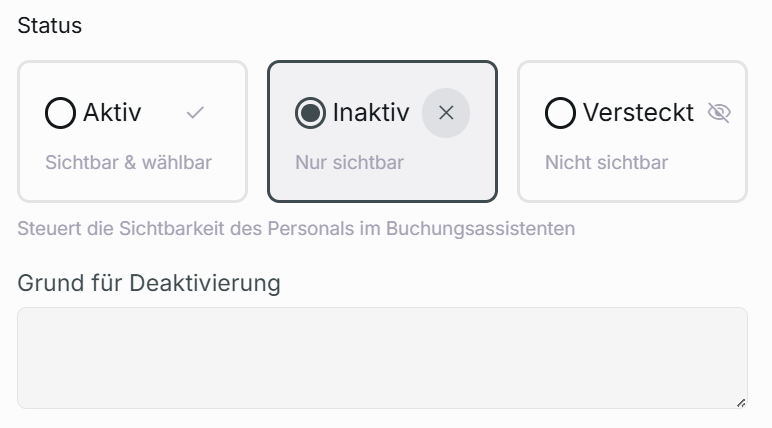
Controls staff member visibility and availability in the booking wizard.
-
Active is when the employee is visible and selectable.
-
Inactive is when the employee is only visible. If an employee is inactive, you can write a description that is viewable in the booking wizard why they are unbookable.
-
Hidden means the employee is neither visible nor selectable.
The status can be individually set for each shop's branch in an organization through changing the role on the staff page.
Assign to organization level
Click the box next to Assign to organization level to automatically give the user access to all the branches in the organization.

The status will be shared when assigning the organization level to the other branches and will override the status the employee already possesses in different shop branches they are already added to prior to assigning a different organization level. This can be separately edited in each shop's branch afterward.
Notes
Add notes if needed.
Click save to add the new employee.
Adding an Unregistered User
- If the employee does not have a staff account registered to the associated email, this will send a staff invitation to their email.
- If a staff invitation expires, you can resend a new invite to the employee's email by filling out the required information in Add Staff and then clicking Save again.
Viewing Staff Members
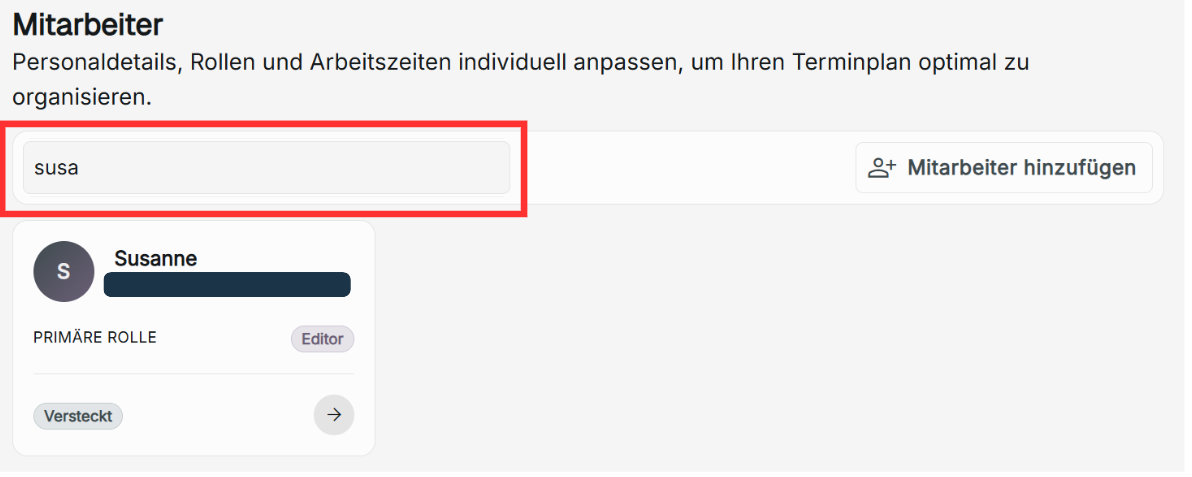
To help find a staff member, you can navigate through the search staff member search bar.
Editing Staff
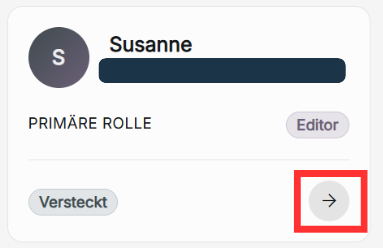
To edit staff in a branch's organization, click on a staff card. Here you can change a staff user's role, change any user's status, remove or add access to the organization level, edit notes, view booking hours, and view annual leaves. Click save to update the changes when done. Editing staff can only be performed by the admin or owner role.
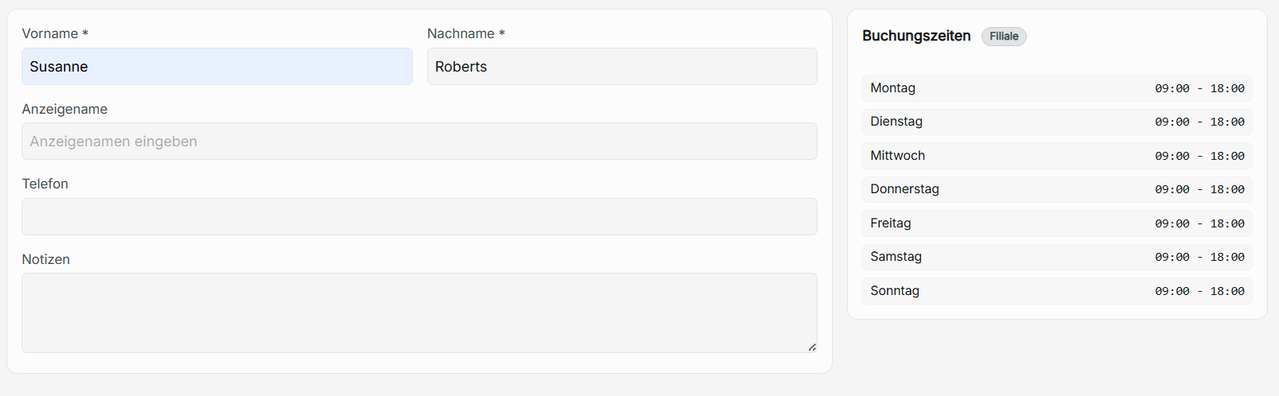
If you are the owner of the account, you can edit your first name, last name, and display name under Edit for your own card. The owner role can edit with priority to change the display name of any staff user in an organization.
Editing the staff status is unique to each shop; however, editing the role changes the role of the user in every shop's branch.
Unassign to Organization Level
When editing staff, if you unassign a staff member from the organization level, the branch where you unassign the staff will determine the shop the staff remains in.

Booking hours under staff
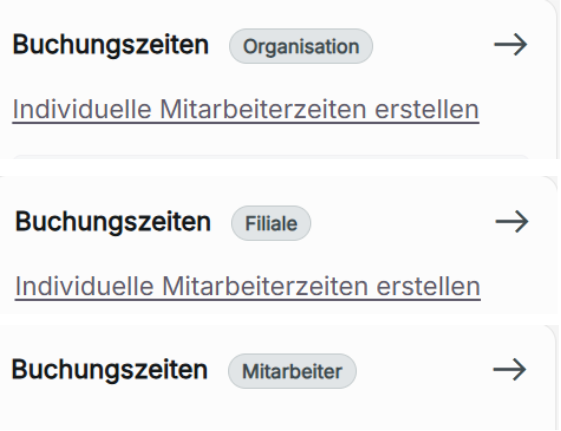
Clicking on the staff also lets you view the staff's booking hours of the branch's organization. This will tell you the booking hours the user follows:
Staff – The user has individual staff hours set.
Shop – The user and shop are using custom-set booking hours separate from the organization
Organization – The user and shop are using the booking hours of the organization.
Editing booking hours under staff
The link to adding or editing the booking hours for a staff, branch, or organization is linked through this page if you have the admin or owner role.
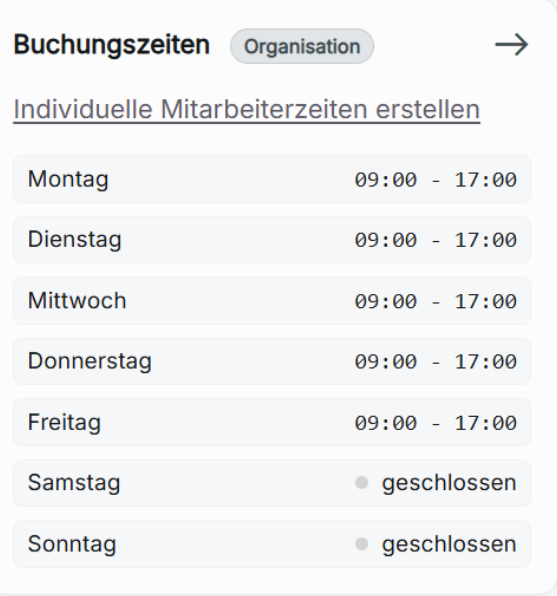
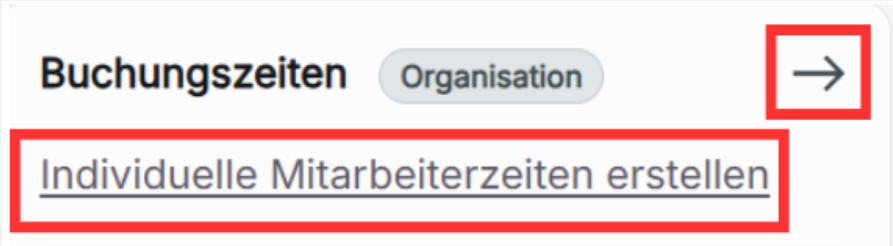
Editing the organization's or shop's booking hours is done by clicking on the arrow next to either organization or shop on staff users who do not have individual staff hours set.
Editing the staff's booking hours can be done by clicking on the arrow of current booking hours under a staff who has individual staff hours set or by clicking Create individual staff hours on a staff who does not have individual staff hours set.
Annual leave under staff
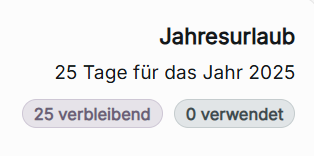
You can view the user's given days of annual leave of the current year, the days remaining, and the days used.
Setting annual leave under staff
If there is no annual leave allowance or staff override assigned for the staff in the current year in the branch's organization, no days remaining and days used will be displayed. Instead, a link to set up leave allowances will be displayed instead if you have an admin or editor role.
How do I remove an employee from a shop's branch?
An employee can only be removed from a shop's branch if they are assigned to a different branch and then unchecking assign to organization level in the different branch. If the employee does not have "assign to organization level," you will need to assign the employee before unassigning in the other organization level to proceed with removing the employee from a shop's branch.
