Customers
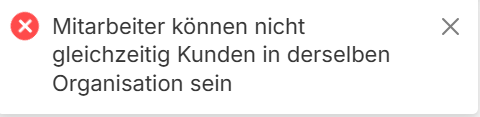
This is where you can view and add customers. You can view the existing registered customer's name, email, and phone number, where the customers viewed are shared for each shop's branch. Staff members cannot be added as customers to any organization they are a part of.
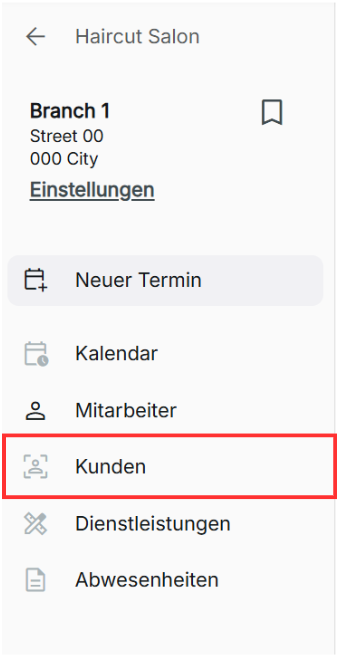
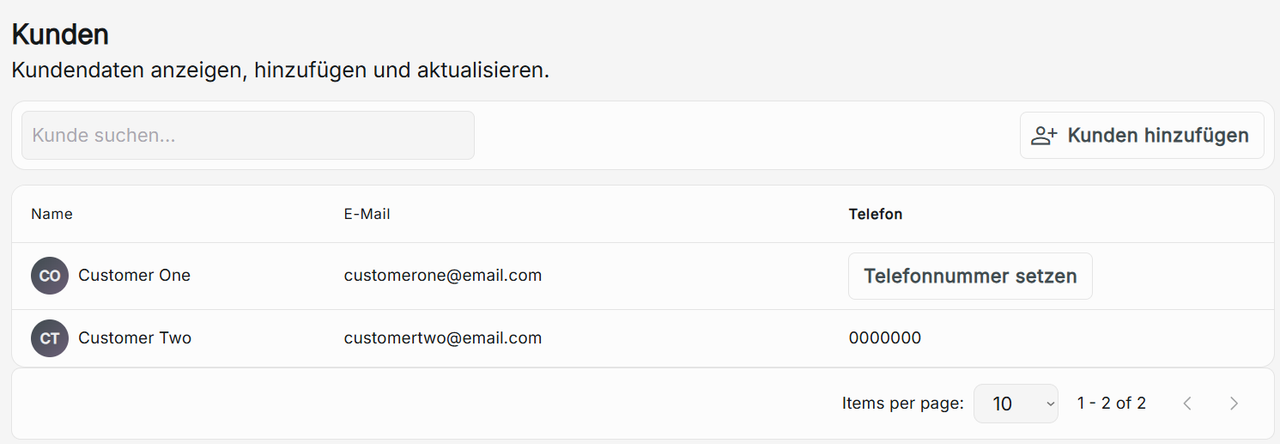
Searching Customers
Click on the "search customer" search bar to help find specific customers. Search using either the name or email of the customer.
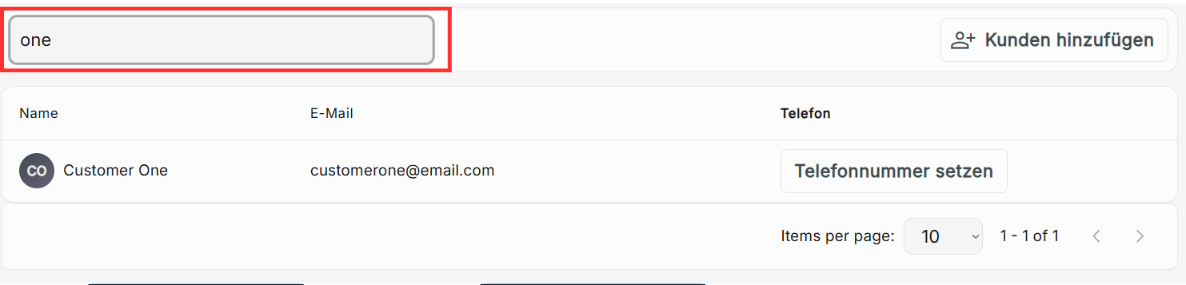
If you have a high number of customers registered, navigate through the customer base using the arrows below the customers listed to go through the pages. You can also change the number of items per page by clicking on the drop-down menu to choose between 10, 25, 50, or 100.

Adding Customers
To add a new customer, click Add Customer. It is required to add the first name, last name, and email of the customer to register them as a customer. The phone number is recommended but optional. Click save to update the customer client base.
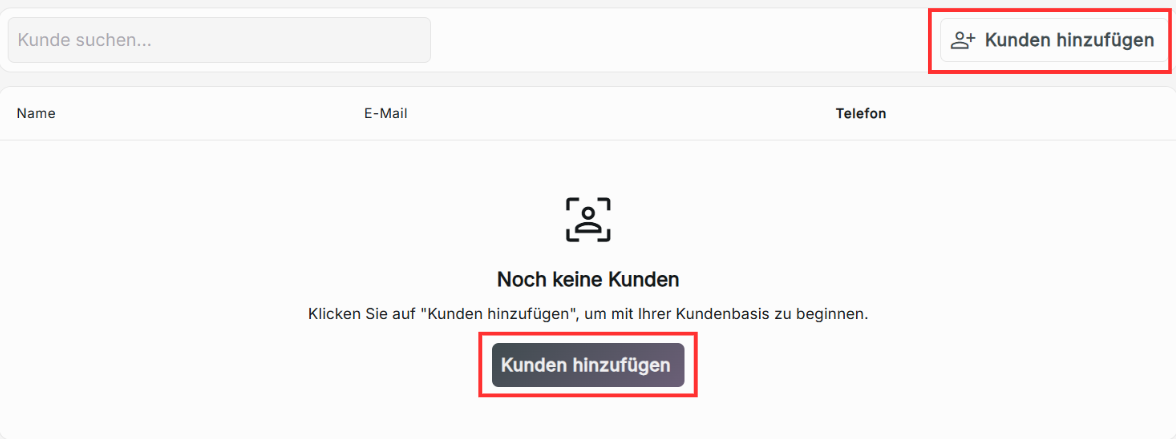
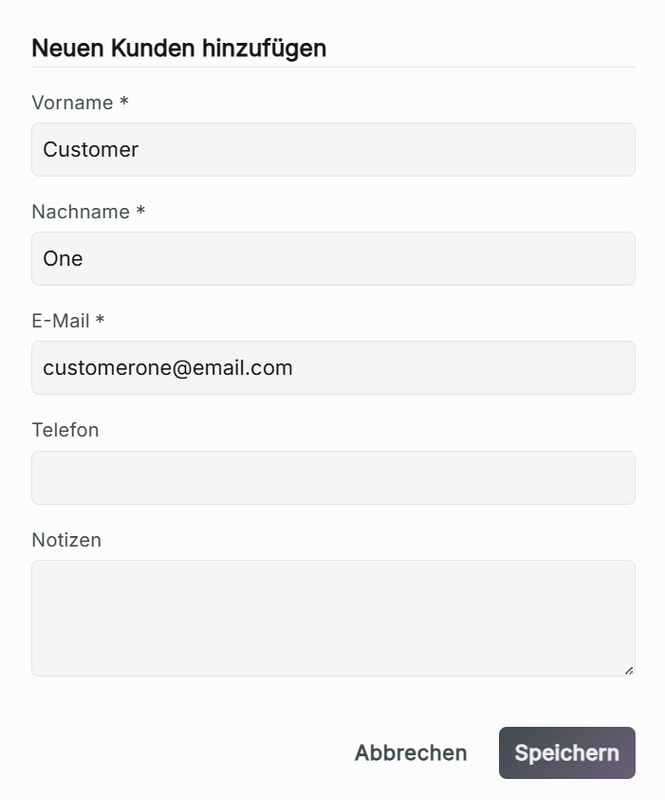
Adding customers cannot be performed by the contributor role.
Editing Customers
If a customer does not have a registered email or phone number, you can update their personal information through this page. Click "Set Email" and "Set Phone" respectively to input the customer's information, then click Save to update the customer page. Setting unregistered emails and phone numbers can only be performed by the admin and owner roles.




Deleting Customers and Customer Information
You cannot remove an email or phone number once it has been set. Only the customer can edit their personal information once it's been set. You cannot remove a customer from the system in a branch.