Organization Settings
The business owner role, has access to Manage Organization. This is where you can view and manage your organization's settings, information, preferences, and users.


Basic Information
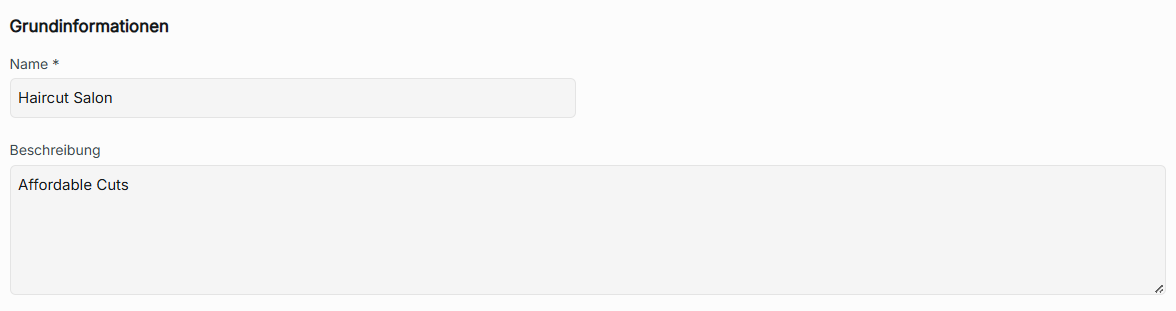
You can update the organization name and description. You can also choose to toggle on and off email notifications for newly added bookings.

Contact Information
You can set, edit, or remove the organization's email, phone number, and website URL.

Click save to update the basic and contact information given.
Booking hours
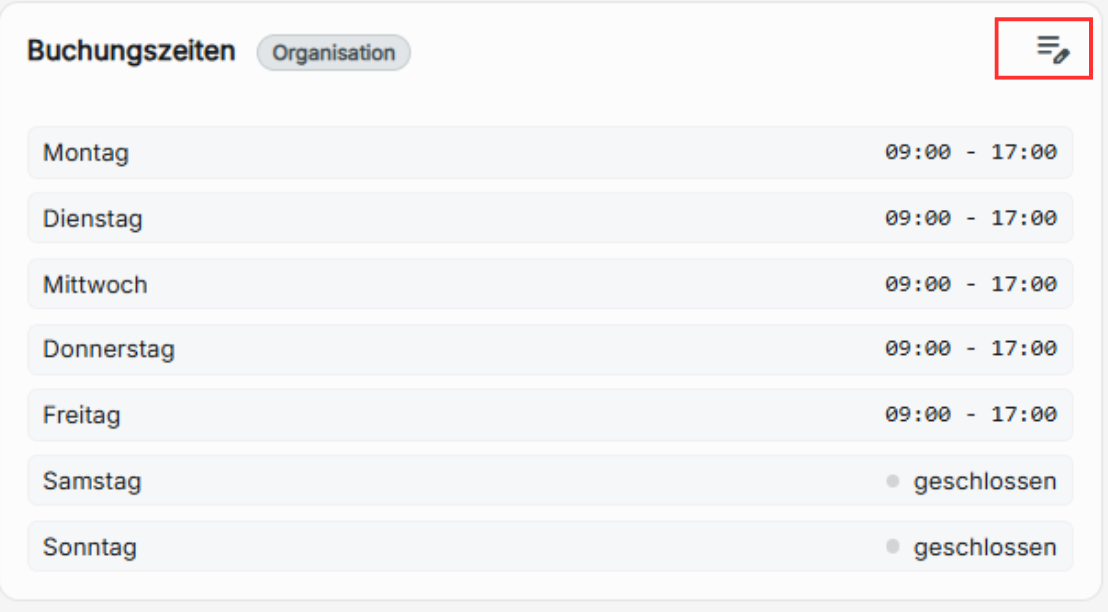
You can change the booking hours of your shop's branches and users that do not have individual booking hours set. Click the edit icon to change the organization's booking hours. Click Update to change the booking hours.
Delete an Organization
This is where you can permanently delete your organization from Zynday. Hold "Hold to delete" to perform the action. Deleting your organization is irreversible and will delete all data associated with the organization.

Users
Where you can manage and view every user added to your organization.

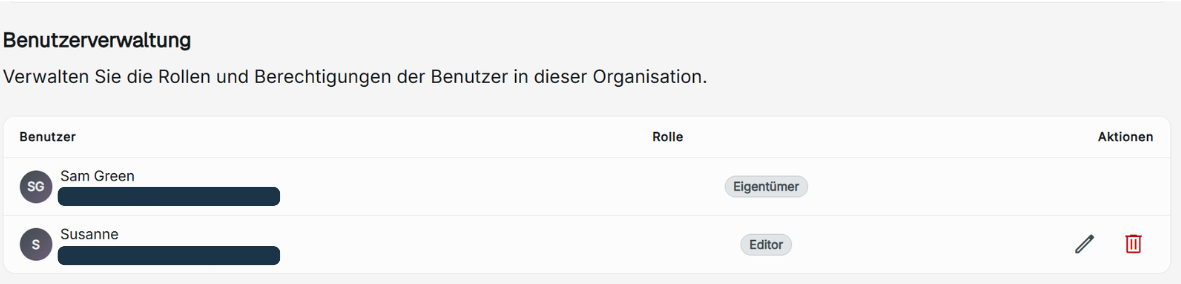
Editing User Roles and Permissions
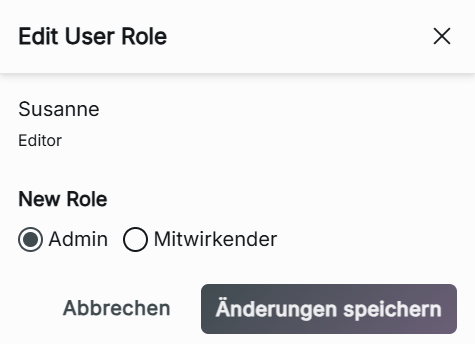
You can update the user role of each user in your organization. Changing the role will apply to every branch the employee is assigned to. To edit a user role, click the edit icon, which will create a pop-up where you can click the new role, then click Save Changes to update the user's role.

Deleting A User From Your Organization
You can delete a user from your organization by clicking the delete icon. By clicking Remove User, this will remove access to everything inside your organization for the user deleted.

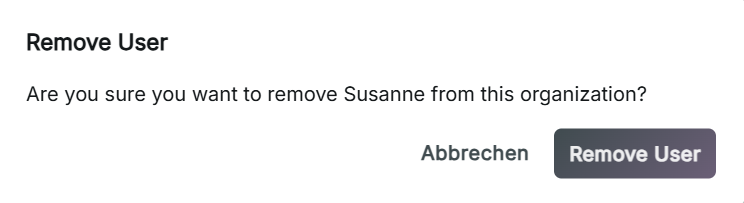
When a user is deleted from a branch or organization, they will lose access to viewing the pages. If a staff member has no organization, they will only have access to their account settings.
Point of Sale
This is where you connect and manage your organization's connection to your SumUp account to accept card payments for the booking appointments. This service is only provided to owner-role users who are subscribed to the Flow package or higher.

Add SumUp account
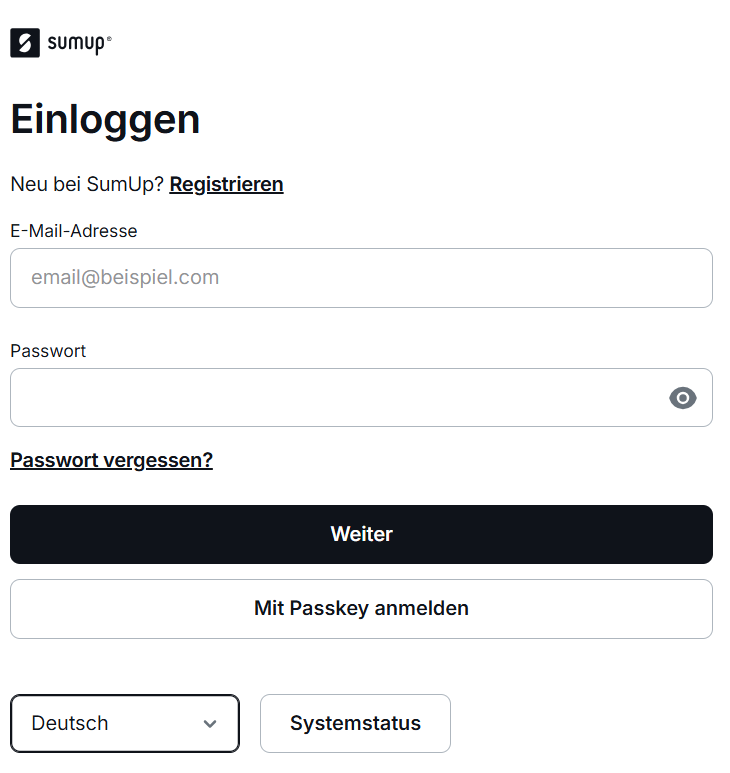
Click Connect with SumUp to be linked to a login to SumUp. Once logged in, the login will load Zynday. Reload the point of sale organization settings afterward to confirm the connection.

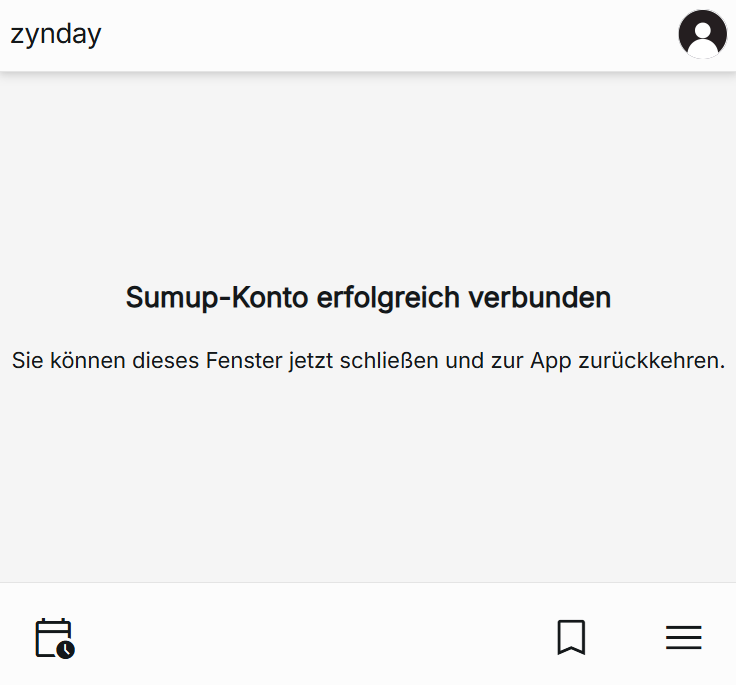
SumUp Connection
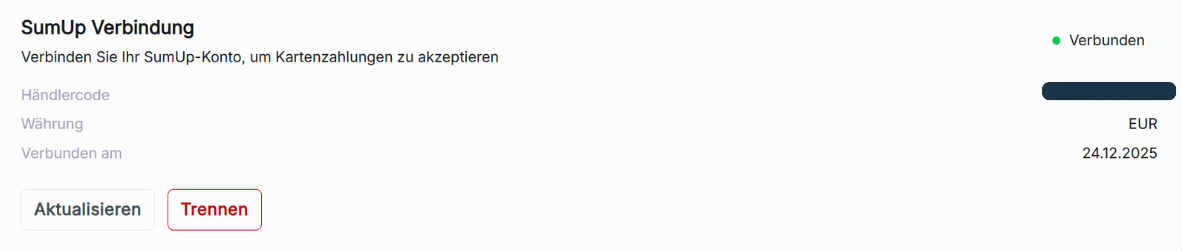
This is where you can view and manage the status of the connection between your organization's shop branches and the SumUp account. You can add your SumUp account and view the connection status of your SumUp account by looking at the current status. Payments can only be processed using SumUp.
Connection Status: If your SumUp account is connected to Zynday

Merchant Code: Your SumUp merchant identifier
Currency: The currency for your SumUp account to make payments for your organization's booking appointments.
Connected at: Tells the date your SumUp account has been connected to your organization's branch.
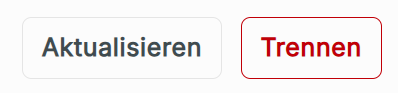
Refresh – To reset the connection between your SumUp accounts and Zynday if processing payments are experiencing problems.
Disconnect – Remove connection and access from SumUp accounts to your organization's shop branch to allow processing payments for appointments.
Card Readers
Each shop's branch can pair a SumUp account. To pair the account, generate a pairing code from your SumUp account. Once generated, enter the code under your chosen branch, then click Pair New Reader. This will connect the branch and will show the date the shop's branch has been paired.
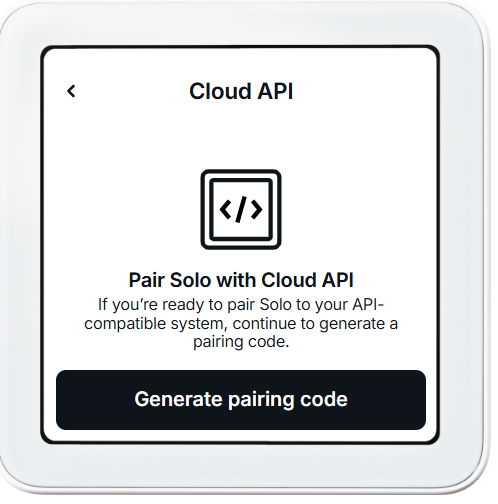
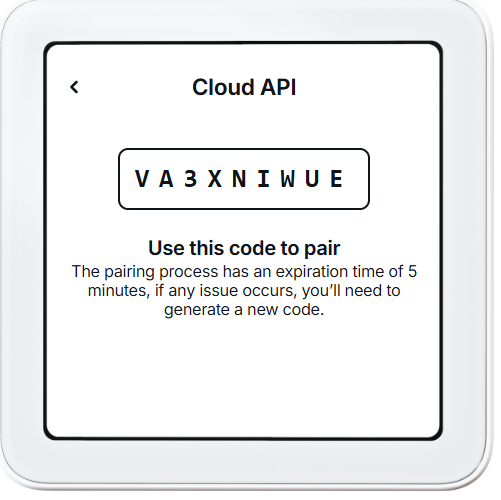


It is possible to pair new readers multiple times if needed or to reset the connection of a shop's branch SumUp account.
Removing a SumUp account from your organization
To remove a SumUp account, click on the delete icon next to a shop branch. This will disconnect the SumUp account.