Booking Wizard
This is what your customers will be using to schedule their appointment.
You can change between English and German by toggling the language between DE and EN. You can switch between light and dark mode by toggling between the moon and sun icons.

Booking an appointment
1. Select the service/s you wish to book
The information for each service's price and duration is provided. If you want to search for a certain service, use the search services search bar to navigate.
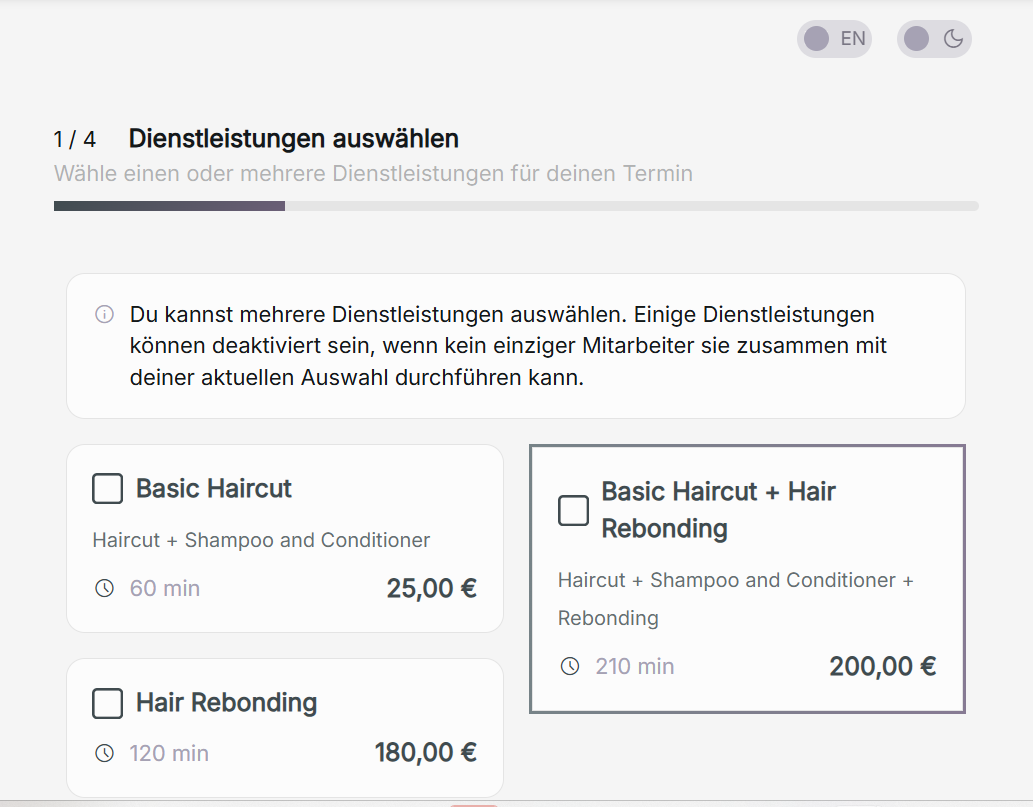
You can select multiple services for one appointment. Certain services may be disabled if no single staff member is available to perform them together with your current selection.
You can book using any combination of standard or combo services.
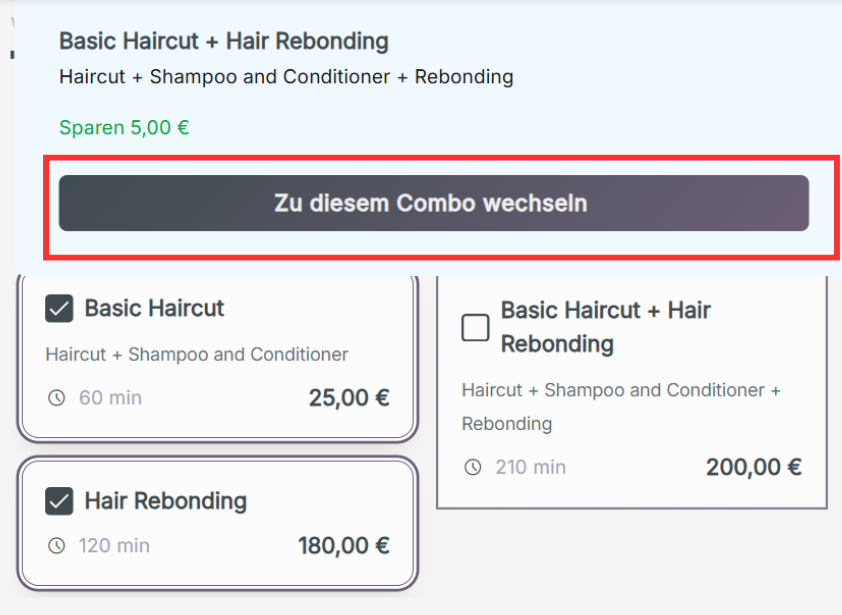
- If you choose individual standard services that create a combo service, you will be given an option to choose that combo service by clicking Switch to this combo.
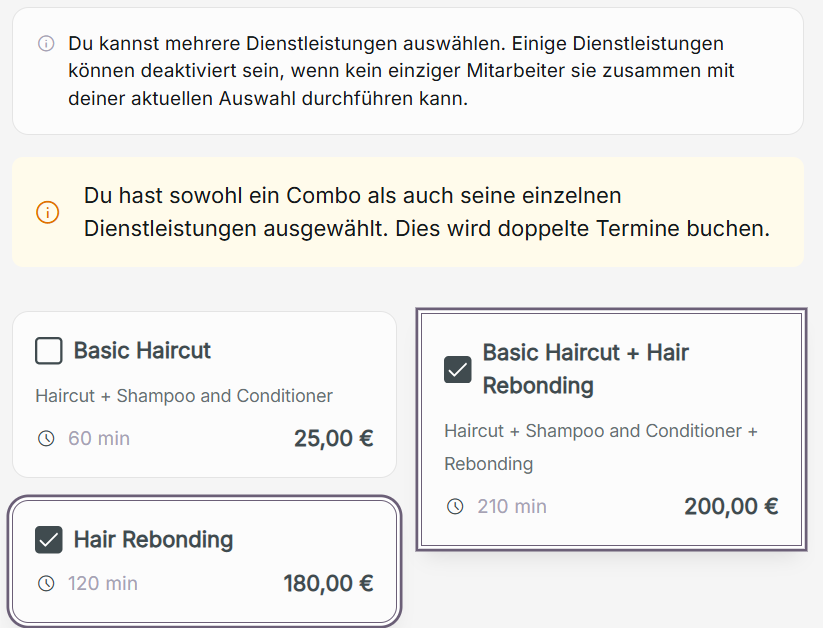
- If you choose a combo service and a standard service that is part of the combo you already selected together, a pop-up will inform you that this will create duplicate bookings of the same standard service.
2. Choose the staff member
You can only choose from active staff. If a staff member is unavailable, you can read the reason provided underneath the staff member. Once you have chosen a staff member, you can choose the date and time. Unavailable dates and times will be automatically blocked out from being chosen.
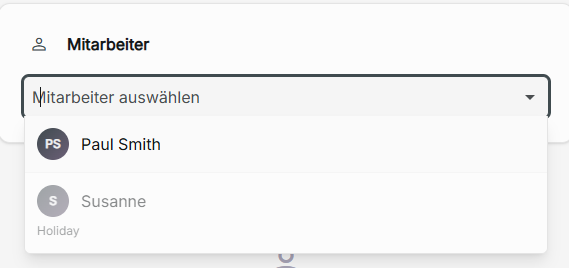
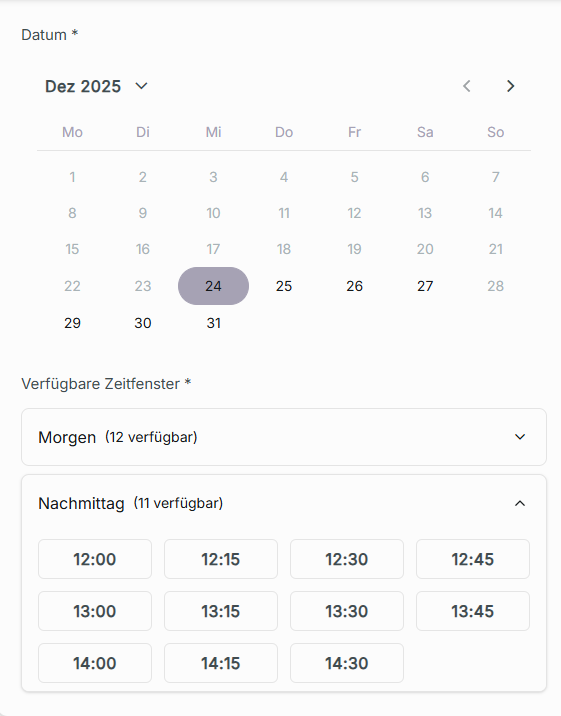
Reasons for unavailability?
- Another customer has an existing booking with your desired appointment time.
- They are currently inactive to be booked. A reason for being inactive will be provided
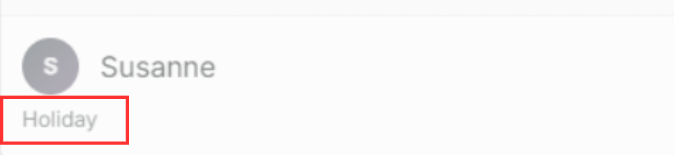
- They are not assigned to provide the service you are booking
- They have an absence request that is either a holiday or blocking.
3. Provide customer information
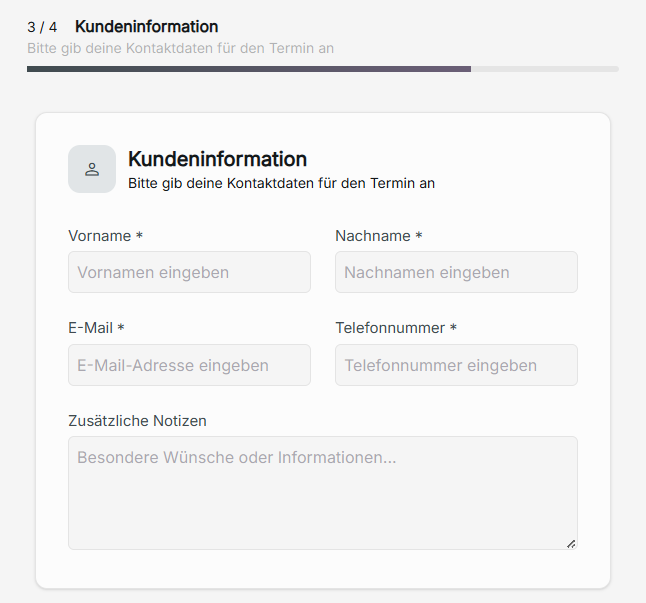
Provide your first name, last name, email, and phone number. These are all required to book your service. You can provide any additional notes needed for your booking.
4. Appointment summary
Here is the summary of your appointment to review. It will tell you the shop's branch you have booked an appointment at, the scheduled date and time, the customer's information provided, the staff member scheduled to fulfill your appointment, the services booked with the duration and price, and the total time duration and price.
If any information here is incorrect, you can click back on each step to correct the information.
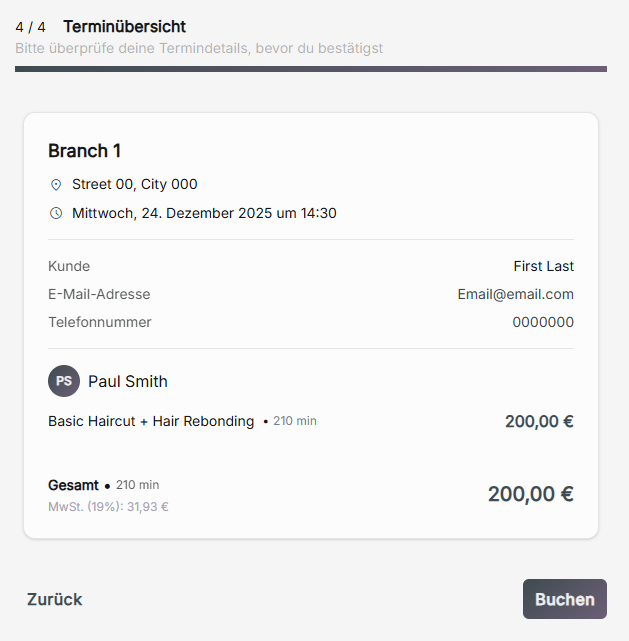
Click Book to complete your appointment.
Order Summary
An order summary will be loaded displaying the details of the customers appointment.
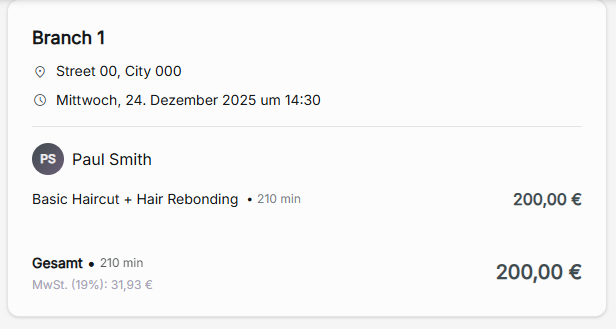
The appointment details can be added to your device's calendar by clicking Add to calendar.

You can create an additional new appointment with Create New Appointment.

To remove your appointment from the organization's calendar, click cancel.

The customer will receive an email reminder 24 hours before the appointment if they have not canceled during a shop's cancellation period.