Absence Requests
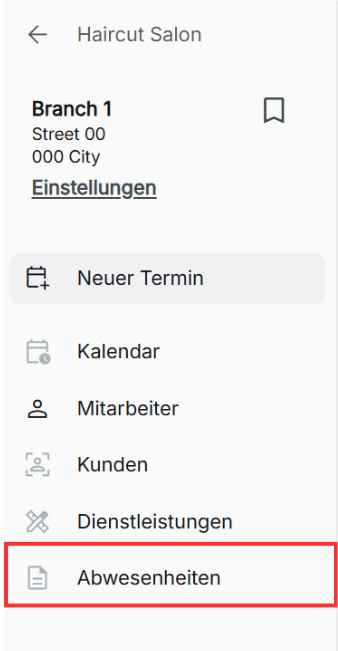
This is where users can request and give time off so that a customer or employee will not be able to schedule an employee for a booking on the calendar within a chosen time frame. This is shared across every calendar's shop branch in an organization, and absence requests from employees assigned to a different branch can also be viewed.
Viewing the Absence Requests
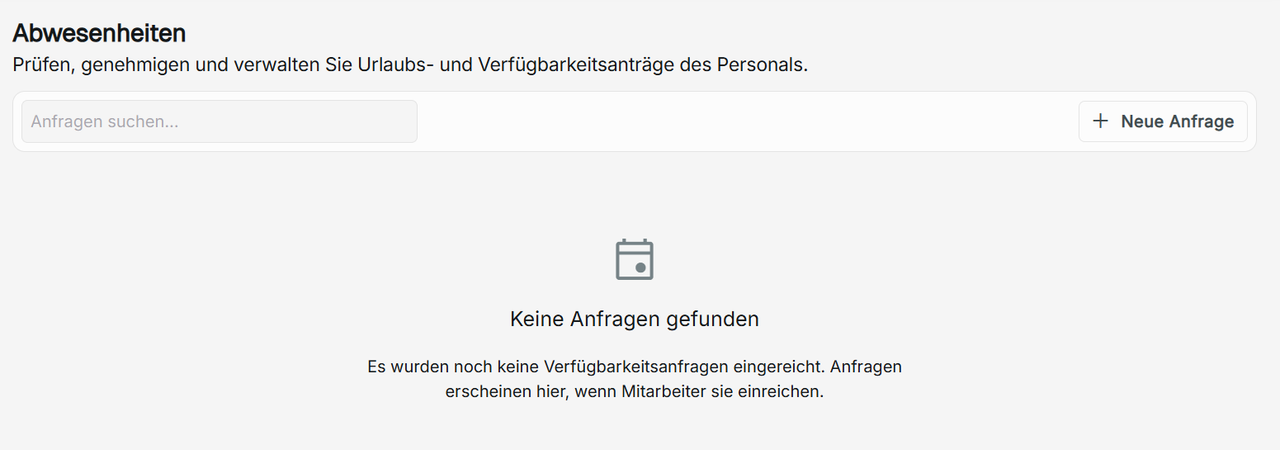
You can view all current pending absence requests, accepted absence requests, and rejected absence requests created by users of the organization.
The information of an absence request contains the staff who are using the time off, the start and end date of the time off including how many days total of time off, the request type, the date the request was processed, whether the absence request is approved or rejected including which staff user processed the request, and any notes given.
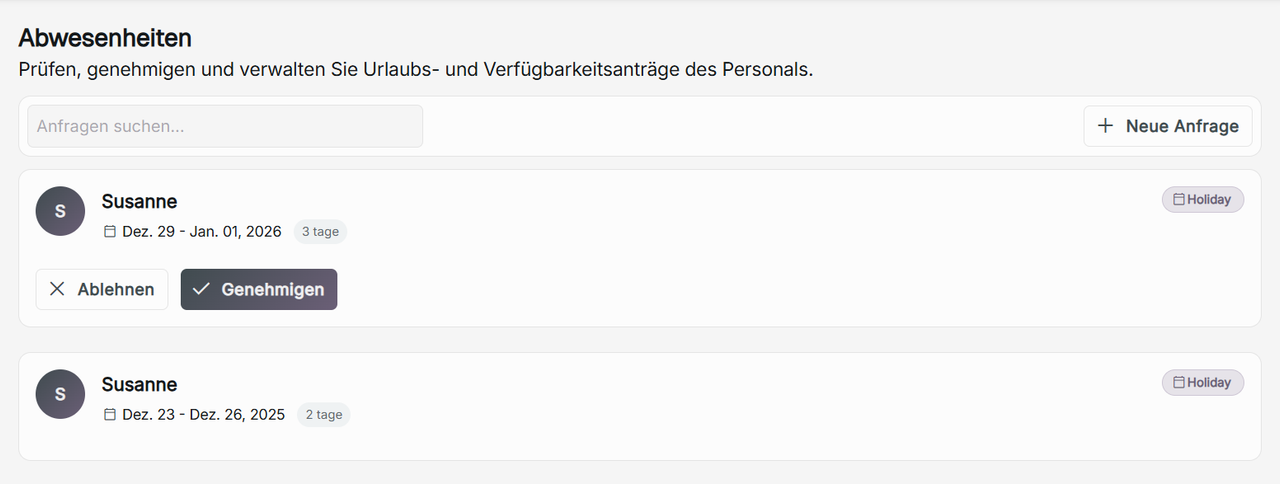
To search for a specific absence request, use the search requests search bar to navigate. You can search via name or display name, request type (holiday or blocked), and content of the notes.

Adding a New Absence Request
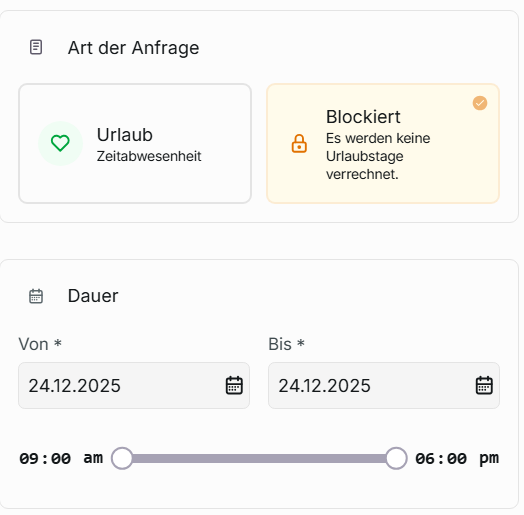
To add a new request, click Add Request. In the pop-up window, as a staff role, you can only create an absence request for yourself. You can either choose between requesting holiday or blocked time off.

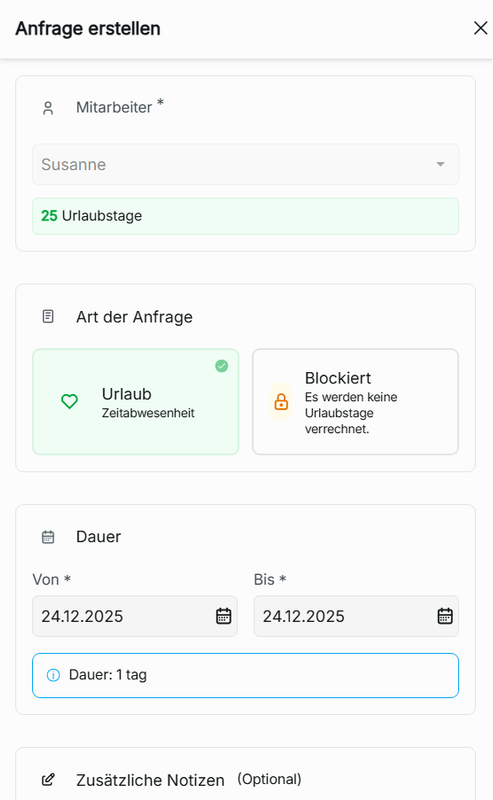
Request Type
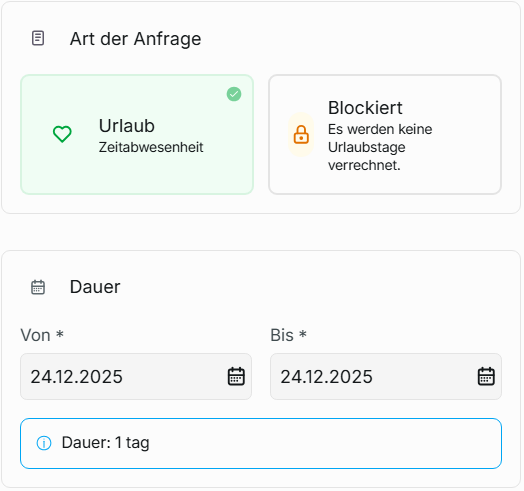
Holiday
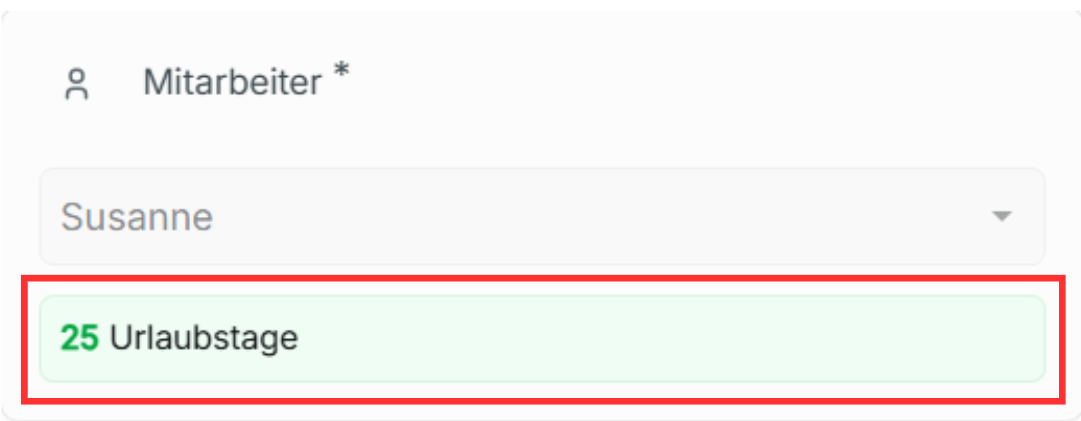
This will deduct from the employee's remaining allowance days created in annual leave. If there is no annual leave or staff override set for employees, the duration of an employee's allowance days will automatically be 0, and they will not be able to request a holiday. You will not be allowed to enter a duration exceeding the employee's remaining allowance days for holiday requests.
You can only create an absence request for a holiday request type at least one day in advance.
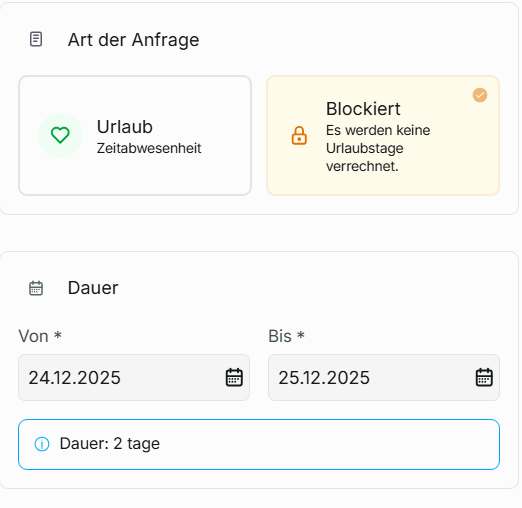
Blocked
This request type will not be deducted from the employee's remaining allowance days.
Blockers
A business that runs with a break in between a scheduled day with no booking hour can be created through blocked request types. By assigning each employee working on the same day blockers, you can schedule your booking hours with no available booking hours in between for that specific day. These will have to be manually created for each staff available that day.
Duration
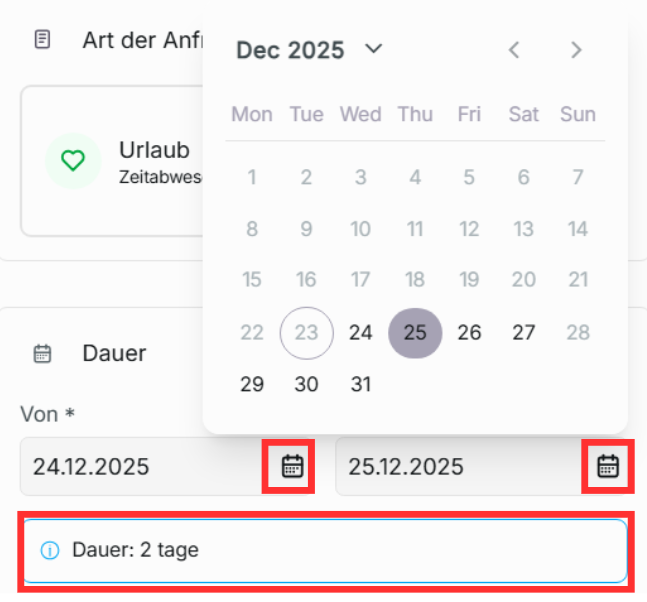
Select the employee's time off duration using the calendars next to "from" and "to." If the to and from date is the same when requesting for blocked, you can specify hours within the calendar day to block out for scheduled booking.
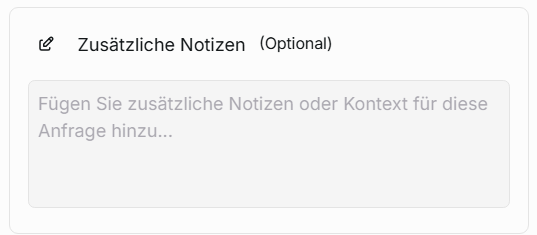
It is optional to add any additional notes if necessary.
Click Create to register the absence request.
Creating an Absence Request Where There Is a Scheduled Booking for an Employee
For appointments created by the admin or owner role, if there are already scheduled appointments for the employee on the date and time you are making an absence request, it will show the scheduled booking appointments, and you can choose to skip the absence request or choose which bookings to cancel where the duration of the absence request exists. This applies to both holiday and blocked absence requests.
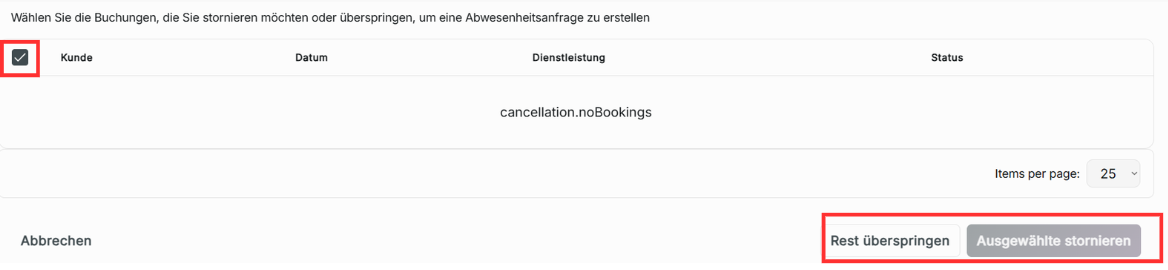
Absence requests for the editor and contributor roles that are approved won't delete the appointments scheduled for them before the absence requests are approved. They will need to be manually canceled or deleted from the calendar.
Processing Absence Requests
The admin or owner role has the ability to approve or deny an unprocessed absence request. They can also cancel approved upcoming absence requests as long as it is not the current day of the absence request for a holiday request type. Any rejected holiday absence requests will return the allowance days available to the employee.

Any absence request created by the owner or admin role will be automatically approved by the system.
Pending Absence Requests
If an absence request is not processed and the day arrives and passes, the absence request will be automatically processed as denied.
Creating Absence Requests as the Owner Role
If you are the owner role, you can choose any employee to create an absence request for. However, when you are in a specific branch as an owner role, you cannot create an absence request for an employee that is not in the current shop branch.